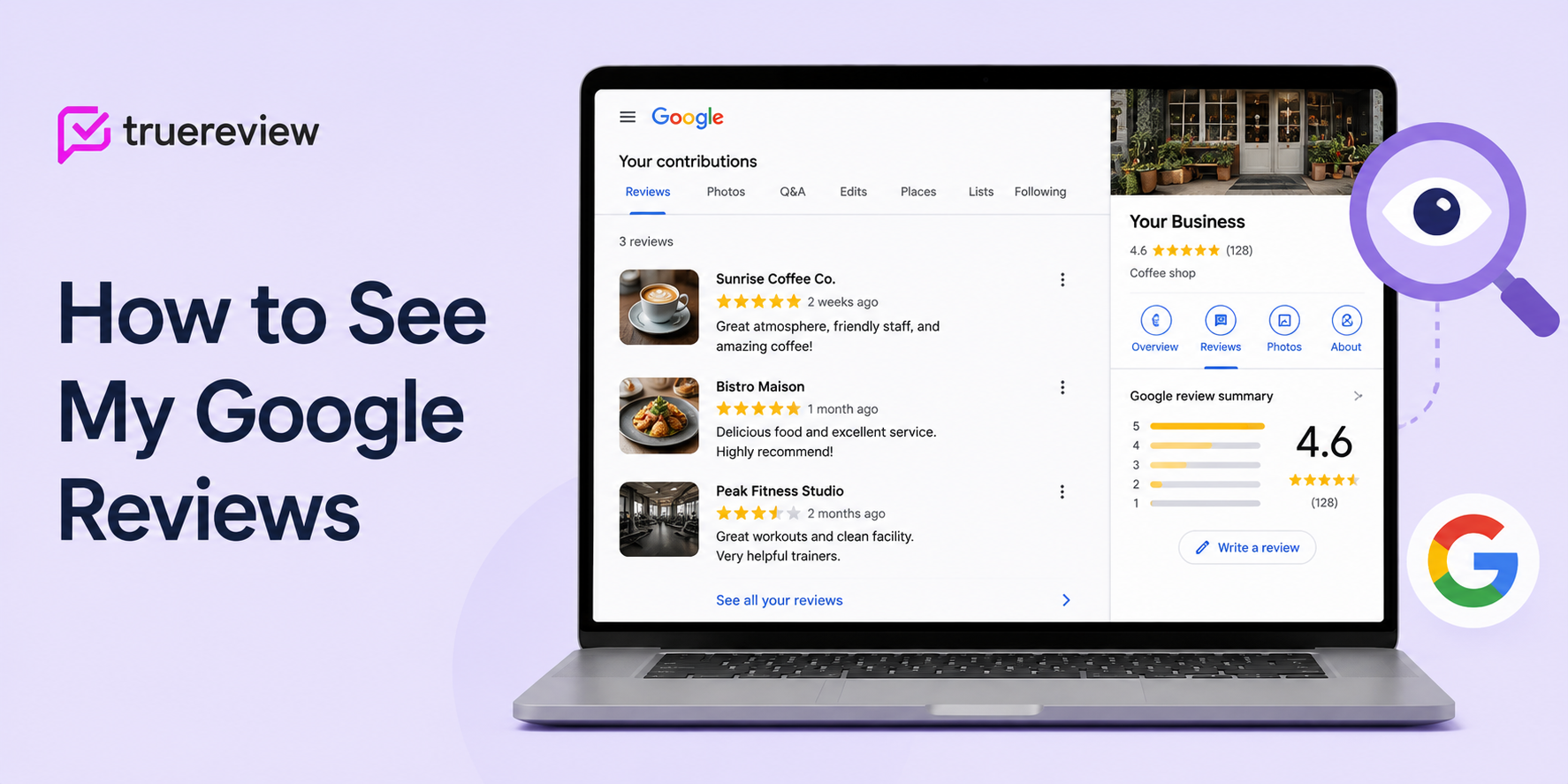
Search your business on Google to see reviews ABOUT you; check "Your contributions" in Google Maps to see reviews you've WRITTEN.
To see the reviews customers left about your business, search your business name on Google or open your Google Business Profile — the reviews appear in the profile panel. To see reviews you've personally written for other places, open the Google Maps app, tap your profile photo, and select "Your contributions." Both take a few seconds. If you manage a business, the fastest way to never miss a new review is to monitor all of them in one dashboard with alerts — covered below.
"How do I see my Google reviews?" turns out to mean two very different things depending on who's asking. A business owner wants to see the reviews customers left about their business. An everyday user wants to see the reviews they personally wrote about restaurants, shops, and services. This guide covers both, plus where Google reviews actually live, why one sometimes seems to vanish, and how owners can keep an eye on every new review automatically.
Where Google reviews live
Before the steps, it helps to know there are three places reviews surface — and which "my reviews" you're looking for determines where you look:
- Your Google Business Profile (in Search). When someone searches your business by name, the panel that appears includes a reviews section. This is where reviews about your business show up.
- Google Maps. Both the reviews about a business and the reviews you've written appear here. Your own written reviews live under "Your contributions" in your Maps profile.
- Google Search results. Star ratings and review counts appear inline next to a business in regular search results and the local 3-pack.
The rest of this guide splits along those two needs: seeing reviews about your business, and seeing reviews you wrote.
See reviews about your business on desktop
If you own or manage a business and want to read what customers are saying:
- Sign in to the Google account that manages your business, then go to google.com.
- Search for your business name (add the city if you have multiple locations).
- Your business profile panel appears. If you're signed in as the owner/manager, you'll also see a management view.
- Scroll to the "Reviews" section to read every review, sort by newest or highest/lowest rating, and see your average star rating.
- From here you can also click "Reply" on any review to respond publicly — responding to reviews is one of the highest-value habits for local ranking and customer trust.
If you don't yet manage your profile, you may need to claim it first. Our guide to Google Business Profile optimization walks through claiming and verifying.
See reviews about your business on mobile
From your phone, the Google Maps app is the quickest route:
- Open the Google Maps app and make sure you're signed in to your business's Google account (tap your profile photo to check).
- Tap your profile photo, then select "Your Business Profile" (if you manage one).
- Tap "Reviews" to see every review, your rating, and reply options.
Alternatively, just search your business name in Maps and scroll to the reviews tab — the same reviews appear whether you're the owner or a customer, but only the owner sees the reply controls.
View reviews left BY you (your own contributions)
If you're not looking for business reviews at all — you want to find the reviews you personally wrote for restaurants, shops, hotels, or services — here's where they live:
On mobile (Google Maps app):
- Open Google Maps and tap your profile photo in the top right.
- Tap "Your contributions."
- Tap the "Reviews" tab. Every review you've ever written appears here, and you can edit or delete any of them from the three-dot menu.
On desktop:
- Go to google.com/maps and make sure you're signed in.
- Click the menu (three horizontal lines) in the top left.
- Select "Your contributions," then the "Reviews" tab.
This is also where you go if you want to update or remove a review you left for someone else — you control your own reviews completely.
Why you can't always find a review
Sometimes a review you know exists — one you wrote, or one a customer told you they left — doesn't appear. The usual reasons:
- It's still being processed. New reviews can take a few hours, occasionally a day or two, to appear publicly while Google's spam systems check them.
- Google's algorithm filtered it. Reviews from very new accounts, accounts with no history, or reviews containing links, phone numbers, or off-topic content can be held back or removed automatically. This is the most common reason a review "disappears" after being live.
- You're signed into the wrong account. If you have more than one Google account, the review may be tied to a different one. Check which account you're signed in as.
- Duplicate business listings. If a business has more than one Google profile, a review may have landed on a different listing than the one you're viewing.
- The reviewer edited or deleted it. Customers can remove their own reviews anytime, and you (as a business) can't restore one that a customer deleted.
Important for owners: you can flag a review that violates Google's policies, but you can't delete a customer's review directly. For the full process, see our guide to removing bad Google reviews.
Monitor every new review automatically
Checking your profile manually works when you have a handful of reviews. Once you're getting reviews regularly — across Google and possibly other platforms — logging in to look becomes the thing you forget to do, and a critical negative review can sit unanswered for a week.
The fix is monitoring with alerts. Instead of remembering to check, you get notified the moment a new review posts, see every review across platforms in one place, and can respond fast — which matters, because responding within 24 to 48 hours is both a ranking signal and the difference between recovering an unhappy customer and losing them publicly.
This is exactly what review-management software handles. A tool like TrueReview surfaces every new review from Google and other platforms in a single dashboard, alerts you instantly, and lets you respond (with AI-assisted drafts you approve) without logging into each platform separately. For the broader context on why monitoring and response matter so much, see our complete guide to Google business reviews.

See every new review the moment it posts — in one place
TrueReview surfaces every new review from Google and 8+ other platforms in a unified dashboard with instant alerts, plus AI-assisted response drafts you approve before publishing — so you never miss a review or leave one unanswered. Start a free 14-day trial.
The bottom line
To see reviews about your business, search your business name on Google or open your Business Profile. To see reviews you wrote, check "Your contributions" in Google Maps. Both take seconds. The harder problem for business owners isn't finding reviews once — it's seeing every new one as it lands and responding quickly, which is where monitoring with alerts earns its keep.
FAQ
The most common follow-ups on finding and viewing your Google reviews.
How do I see the reviews I've written on Google?
+
Open the Google Maps app, tap your profile photo, and select "Your contributions," then the "Reviews" tab. On desktop, go to google.com/maps, open the menu, and choose "Your contributions." Every review you've written appears there, and you can edit or delete any of them from the three-dot menu.
How do I see the reviews customers left about my business?
+
Sign in to the Google account that manages your business and search your business name on Google — the reviews appear in your Business Profile panel. On mobile, open Google Maps, tap your profile photo, select "Your Business Profile," and tap "Reviews." From there you can read, sort, and reply to every review.
Who can see my Google reviews?
+
Reviews you write are public. Anyone can see them on the business's profile, and anyone who clicks your reviewer name can see the full list of reviews you've left, along with your account name and profile photo. There's no private review on Google — the system is public by design to keep ratings accountable.
Why did my Google review disappear?
+
Usually because Google's algorithm filtered it — common triggers include reviews from very new accounts, reviews containing links or phone numbers, off-topic content, or a sudden cluster of reviews that looks unnatural. It may also still be processing (which can take a day or two), or the reviewer edited or deleted it. Business owners can flag policy-violating reviews but can't delete a customer's review directly.
Can I get notified when my business gets a new review?
+
Yes. Google sends some email notifications for new reviews if you manage the profile, but they can be inconsistent across multiple locations or platforms. Review-management software like TrueReview gives you instant alerts for every new review across Google and other platforms in one dashboard, so you can respond within the 24-48 hour window that matters most for ranking and customer recovery.
Can I see reviews for a business without a Google account?
+
Yes. Reading reviews doesn't require an account — just search the business on Google or Google Maps and scroll to the reviews section. You only need to be signed in to a Google account to write a review or to reply as a business owner.