BLOG POST
Want to automatically send a review request when a job is completed or a project sale stage is updated in Supermove? With Zapier, you can seamlessly pass customer information from Supermove to TrueReview and trigger review requests without lifting a finger.
We’ll use Zapier Webhooks to send customer contact details from Supermove to TrueReview whenever a project is completed or the sale stage is updated.
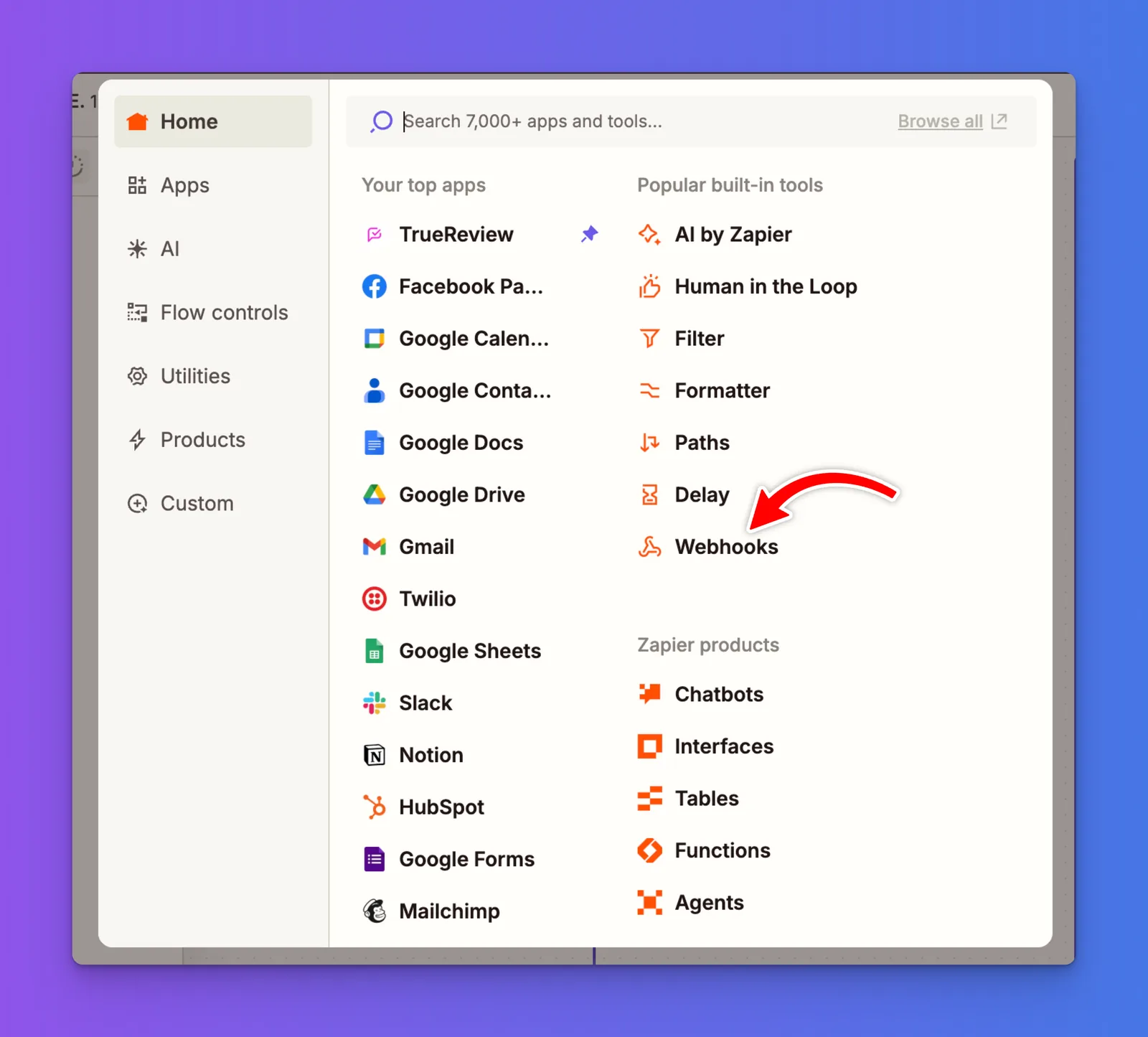
Under the Setup tab, choose “Catch Hook” as the Trigger Event from the dropdown menu.
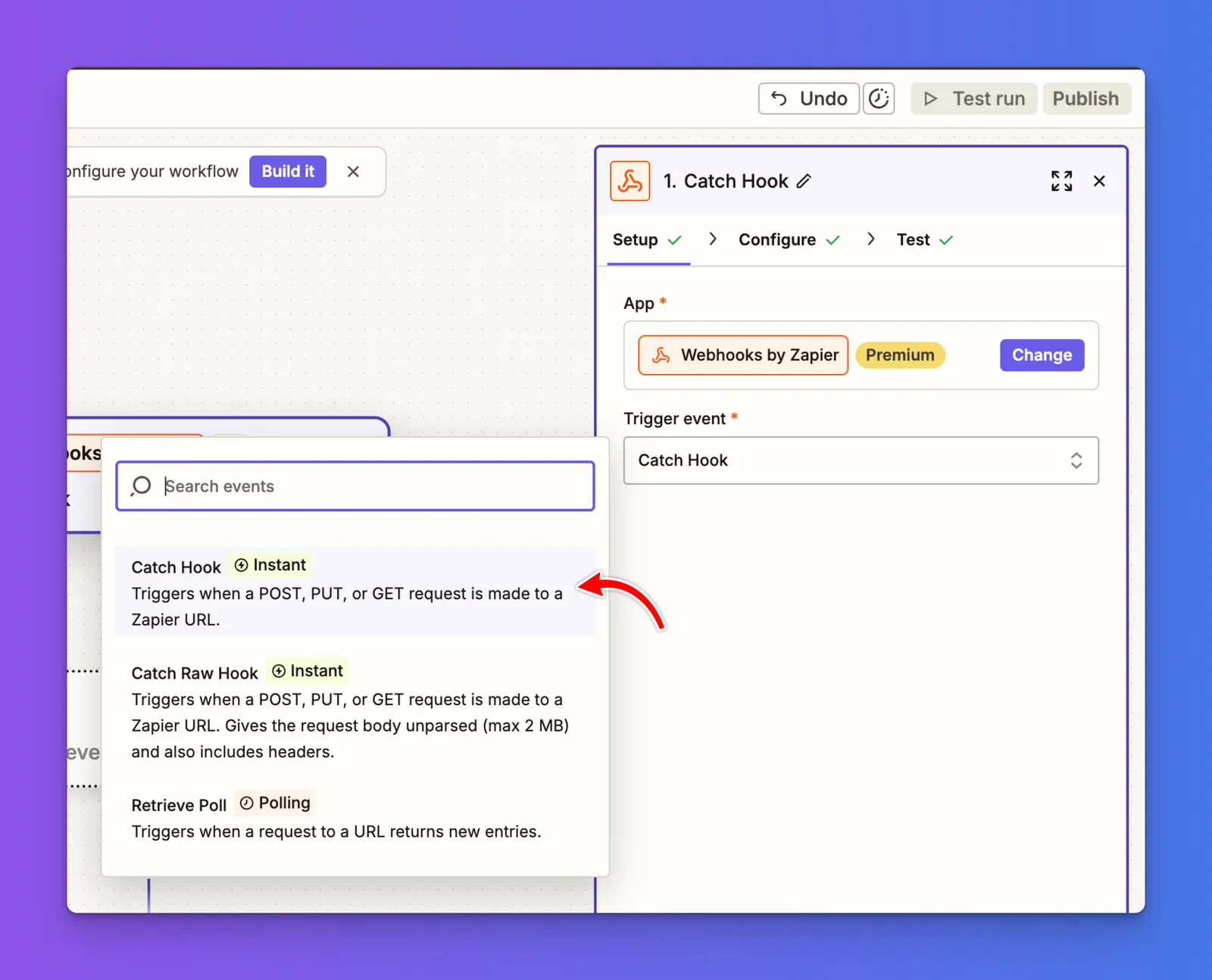
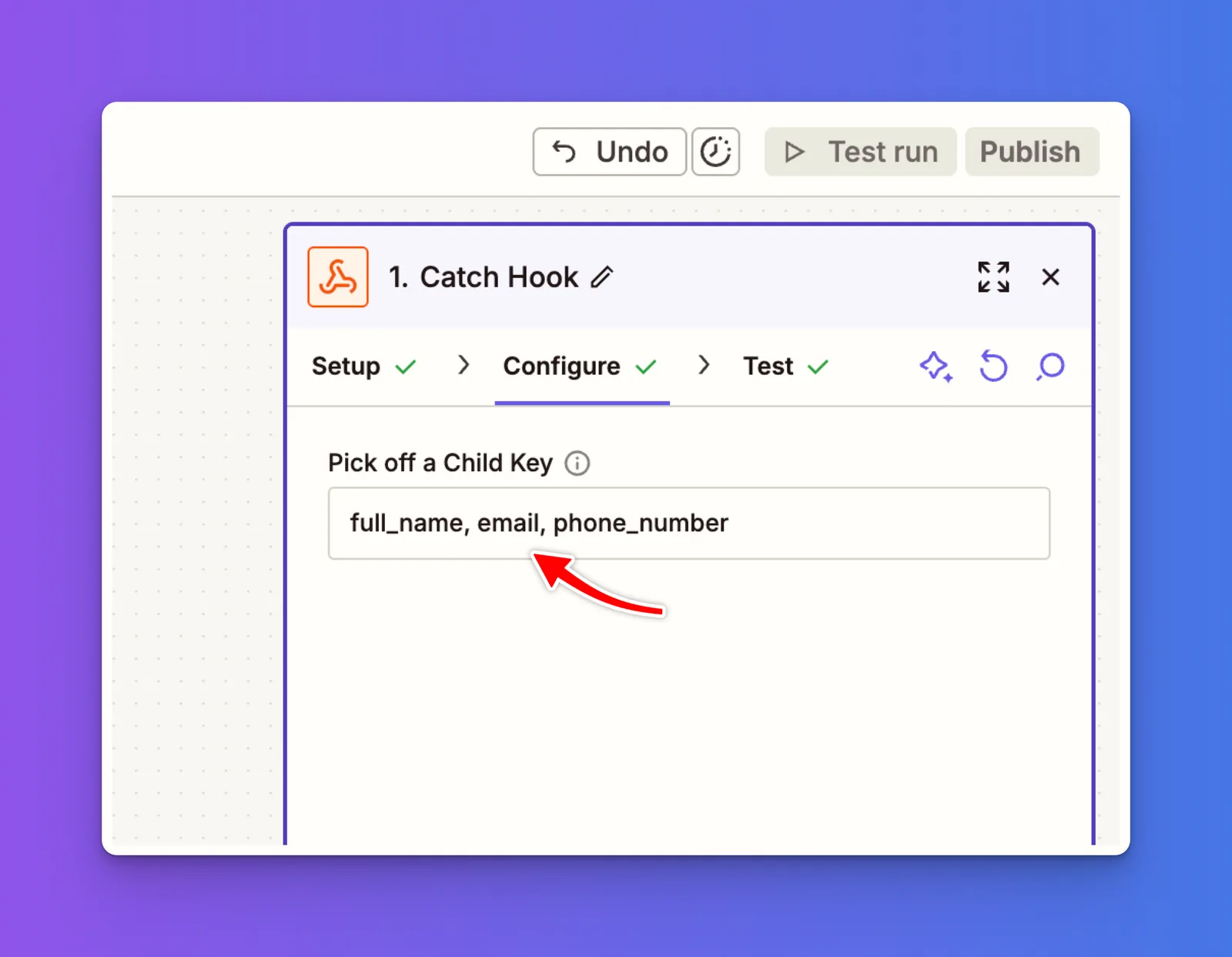
Click Continue, then paste the following into Pick off a Child Key:
full_name, email, phone_number
Click Continue, then under Your Webhook URL, click Copy to copy the URL.
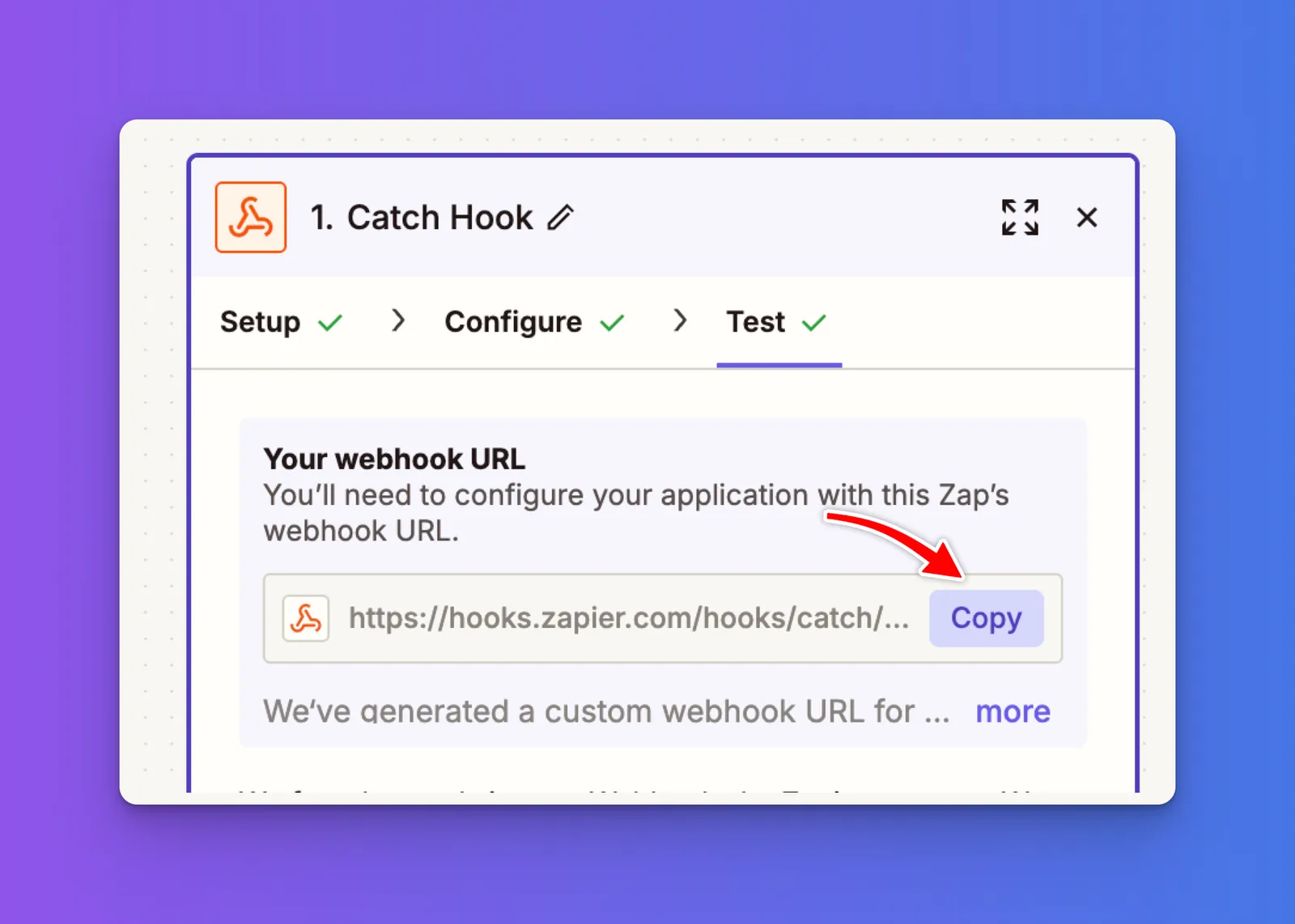
Save the URL for later use in the Supermove automation.
From your Supermove Settings page, go to Automations and select Create Automation.
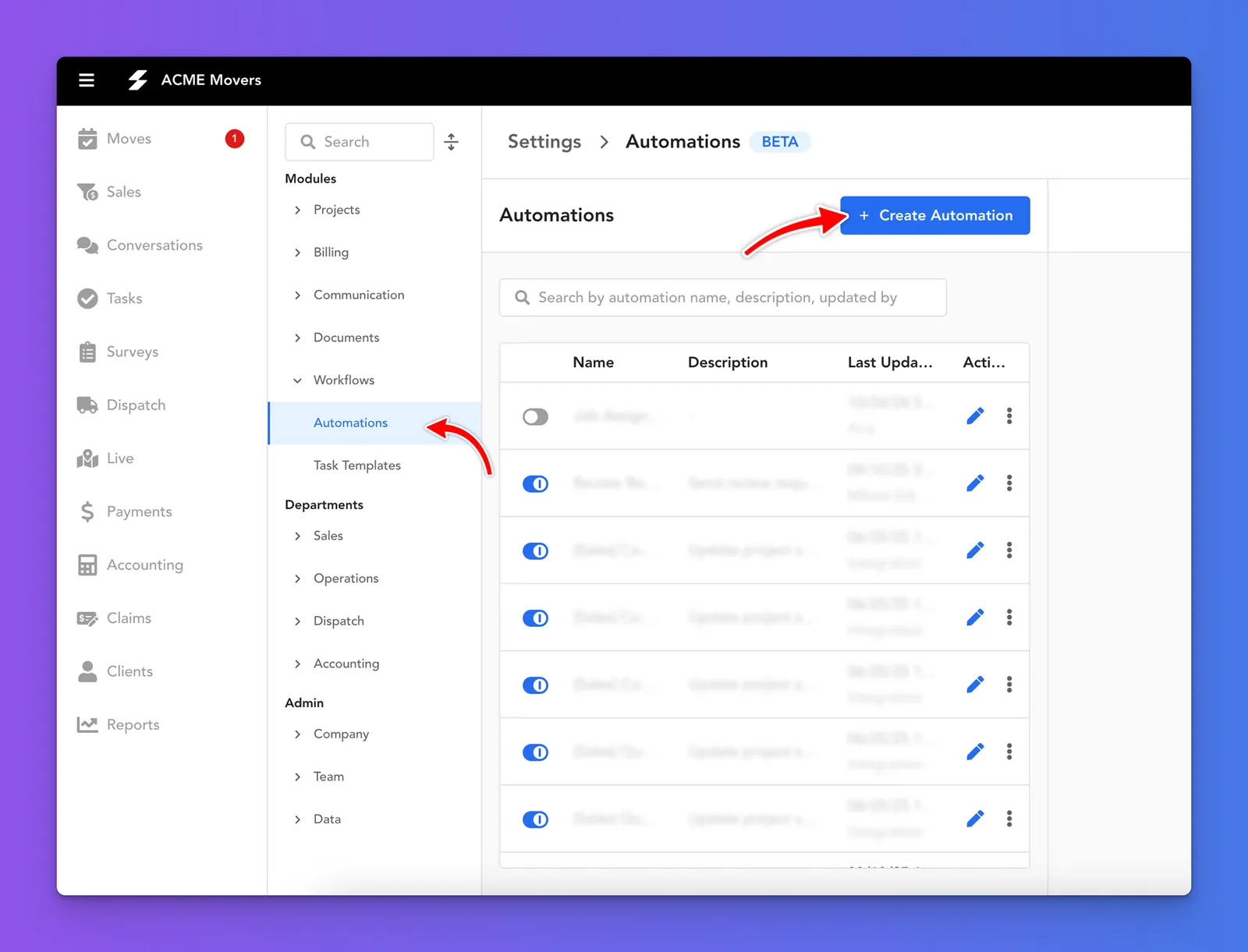
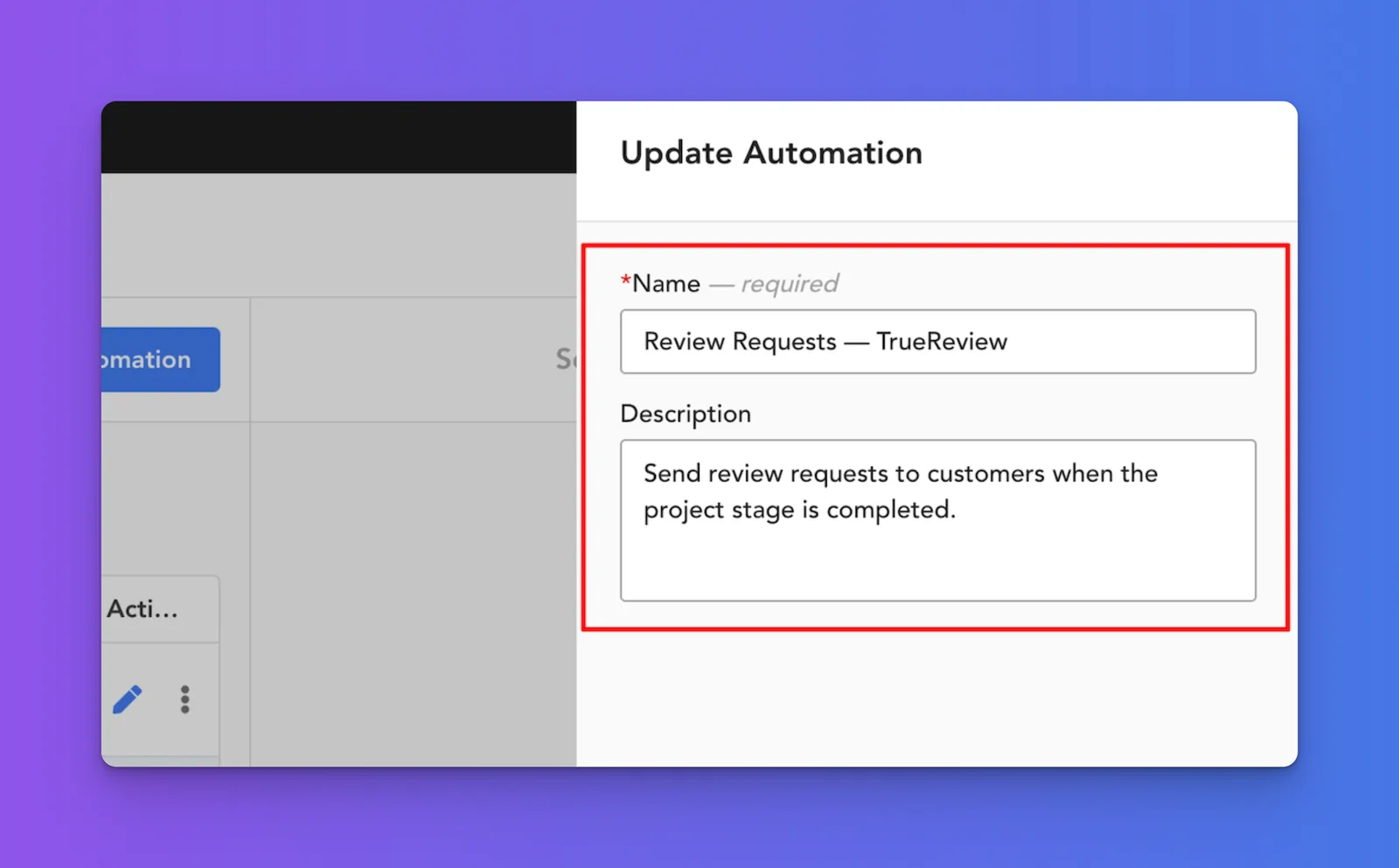
Give it a name, and description and click Update Automation
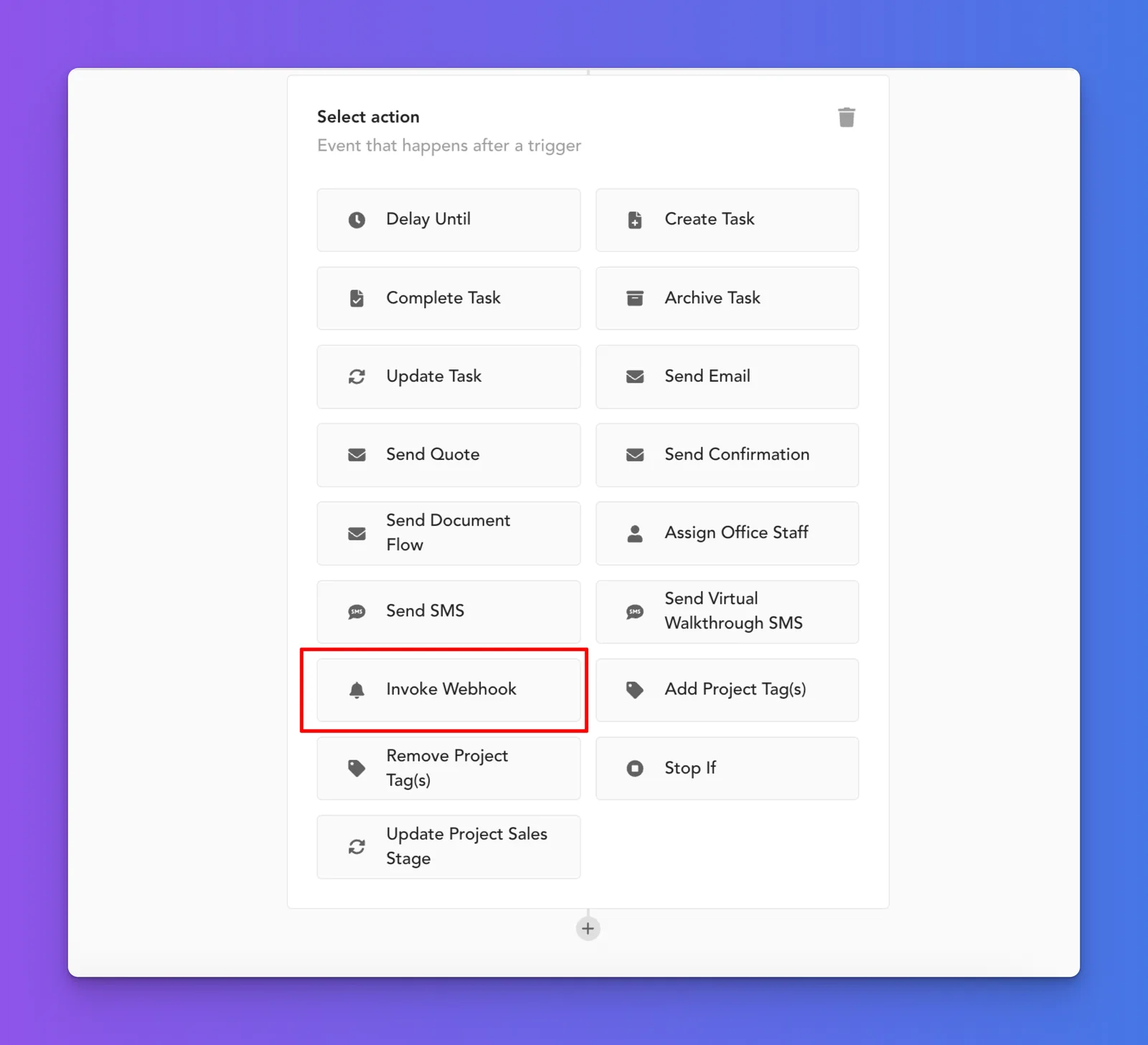
Next, select "Invoke Webhook" from the list of options.
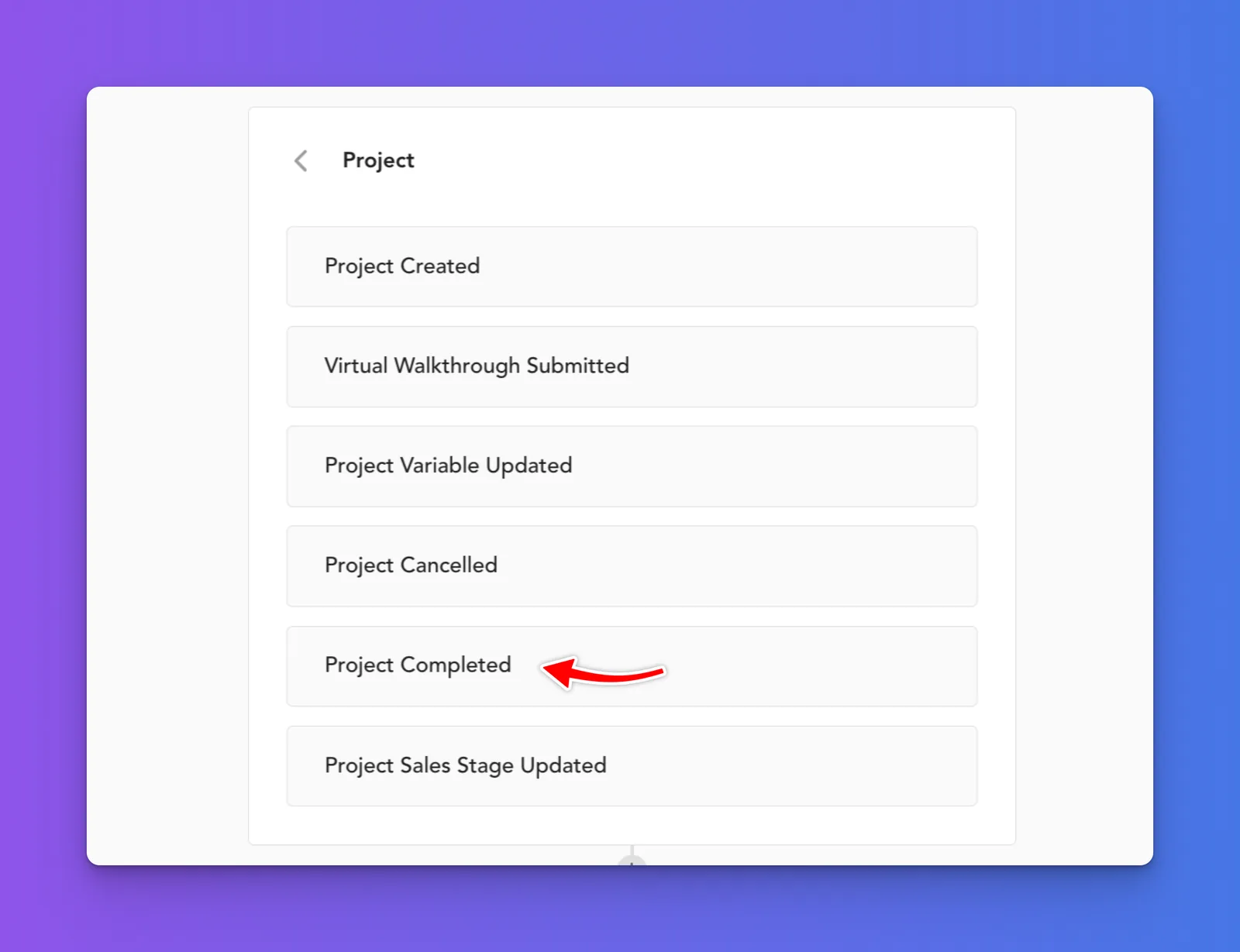
Select Project Completed as the Trigger to send the customer’s information to the Webhook whenever a project is marked complete.
Next, select POST.
In the URL field, paste the Webhook URL you generated from Zapier.
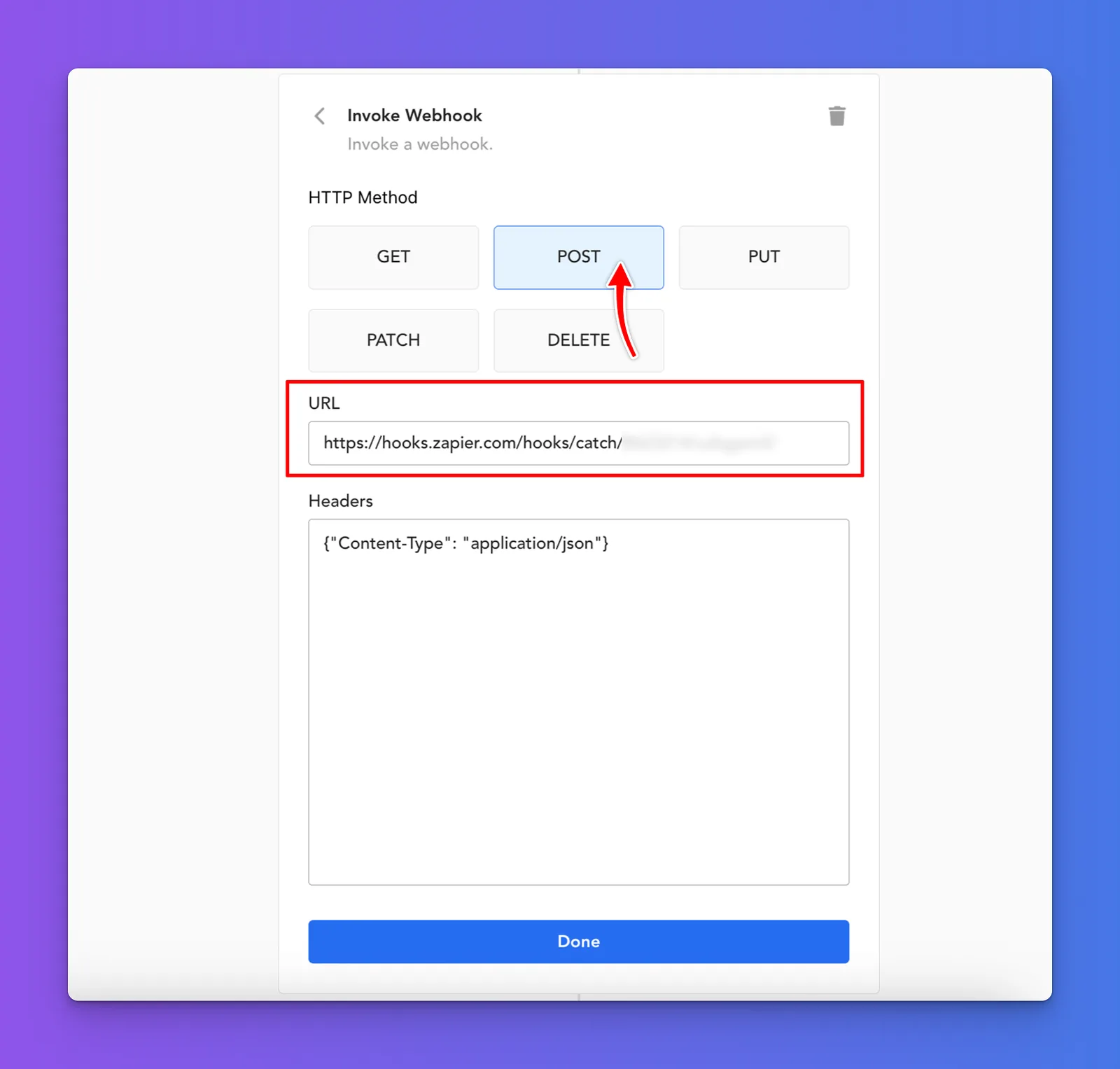
Click Done to finish setting up your Supermove automation.
Now return to Zapier and click Test Trigger. Before testing, make sure Supermove sends data by creating a sample customer or selecting an existing customer to mark as completed.
Once marked complete, go back to Zapier and click Test Trigger. You should see a new customer record appear in the results.
Next, add the Action step. Search for and select TrueReview.
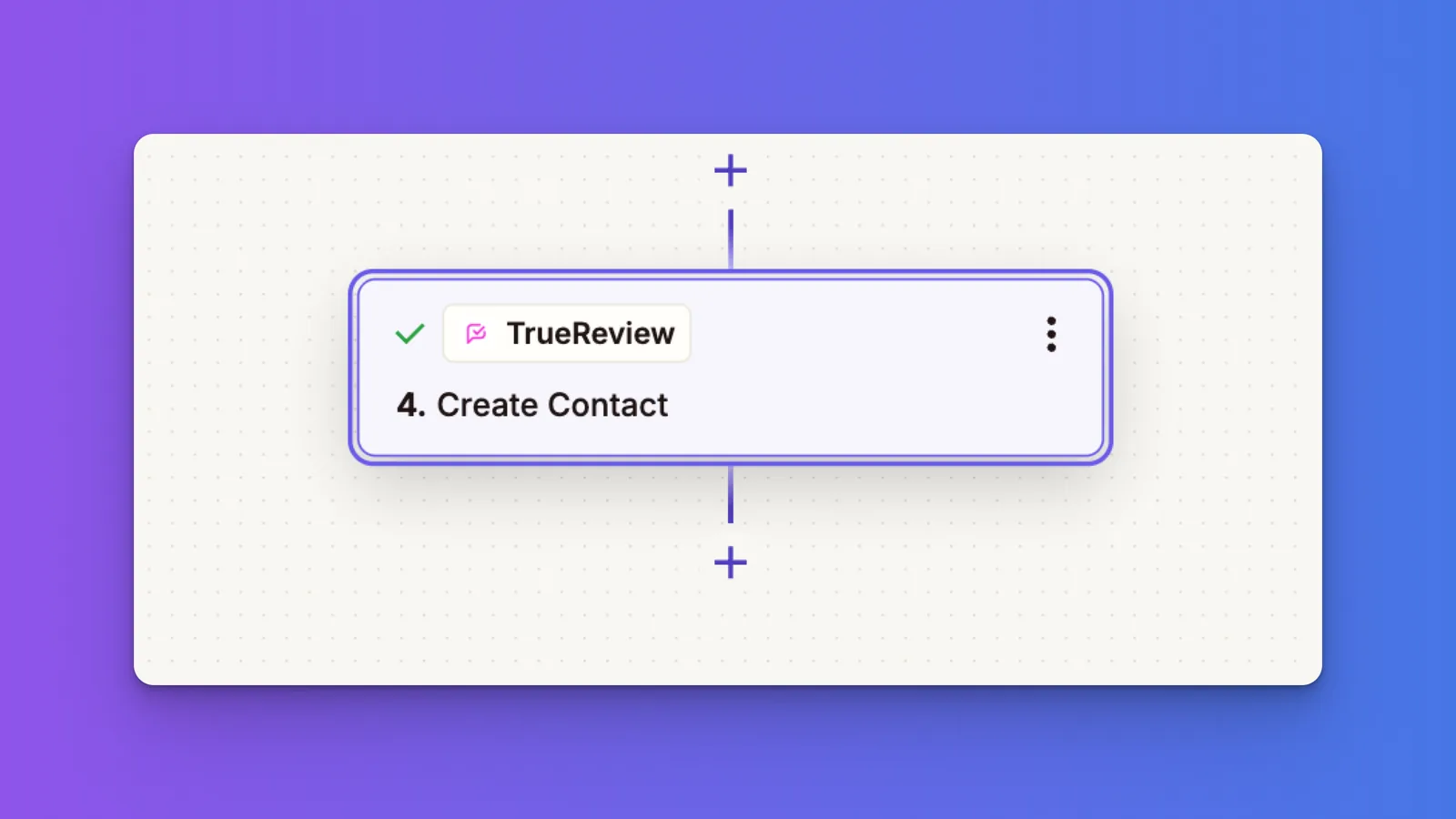
Click into the Action step and choose one of two options:
Connect your TrueReview account by signing in and selecting your business.
Next, link the contact information from the webhook and Supermove. Click the plus icon and search for Primary.
Map the following fields:
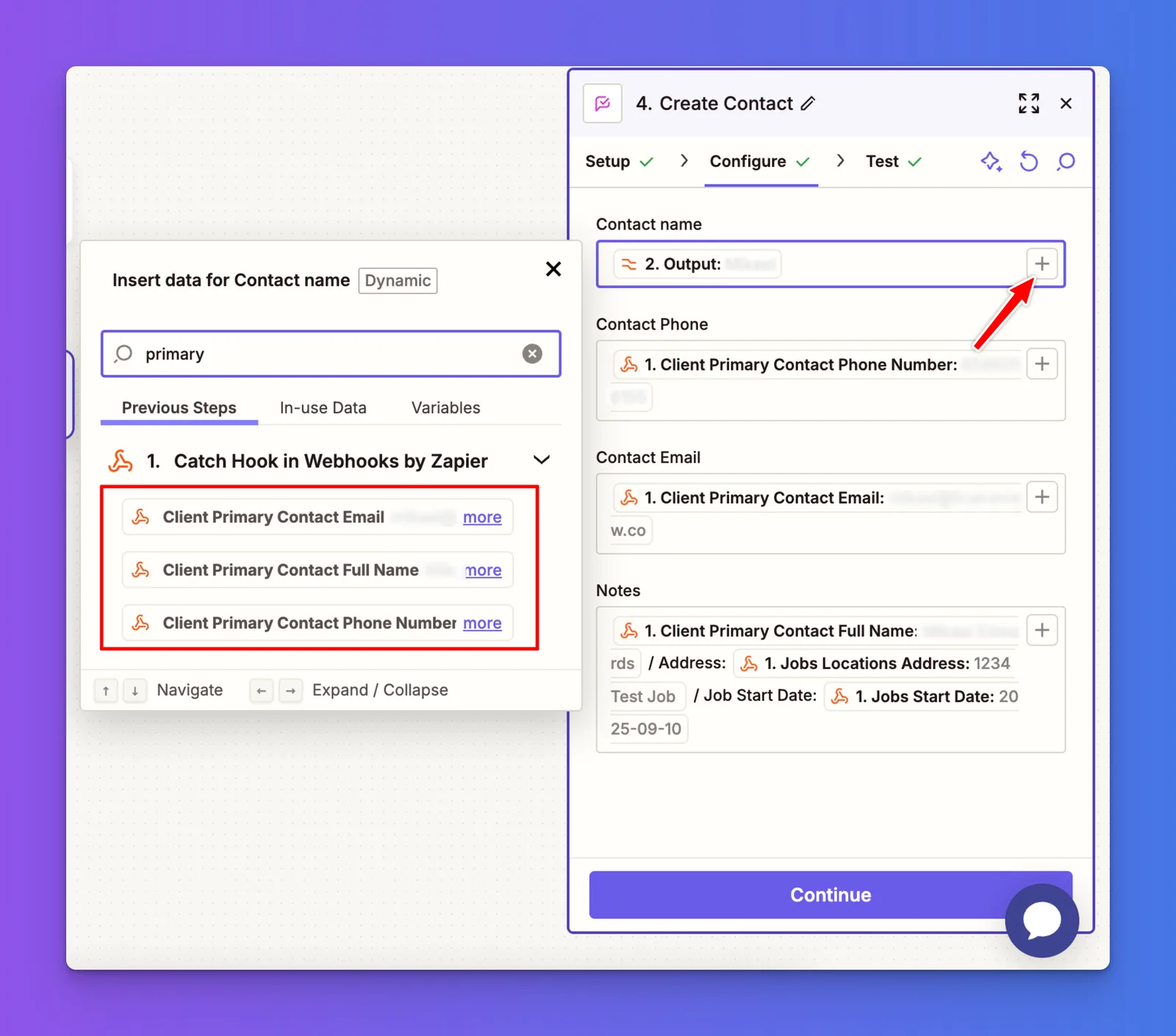
You can add additional details in the Notes field, which will be visible only to you.
Once you’ve added these sources, click Continue and publish your Zap.
From now on, whenever a project in Supermove is marked as completed, TrueReview will automatically send a review request to the customer.
Supermove is just one of many operations platforms that can trigger TrueReview through Zapier — for the full picture on what's possible, see our guide to automating Google review requests. Once your review pipeline is running on autopilot, the work shifts to responding well: our review management playbook and positive review examples cover how to turn each inbound review into both five-star social proof and a real moving-customer relationship.