
BLOG POST
If you take orders or payments with Square, you can create an integration using Zapier to send review requests via TrueReview whenever there is a new payment, new customer, new order, and more.
Below is an example of a Zap automation to help you create your own. If you need help with your Square and TrueReview integration, our experts are here to help. Message us through the live chat for help.
Square already captures the moment a transaction completes — and that's exactly the operational signal you want triggering a review request. Wiring Square into TrueReview means a review request goes out automatically every time a customer pays, with no extra steps for you or your team. You'll capture more reviews on autopilot, without remembering to ask, and the timing will be right because the request fires while the experience is still fresh.
Before we get started, here's what you need:
First, go to your Zapier account and create a new Zap by clicking the "Create" button at the top left of your screen.

In the following guide we will also show optional steps, like filters, delays or formatting of information. This is optional to improve the way information is sent to TrueReview, but is not required to make your automation work.

For the Trigger Event, decide how you'd like to trigger your review request.
In this example, we will use the "New Order" Trigger.
When a new order is captured, we'll run a few filters, then send a review request to that customer.
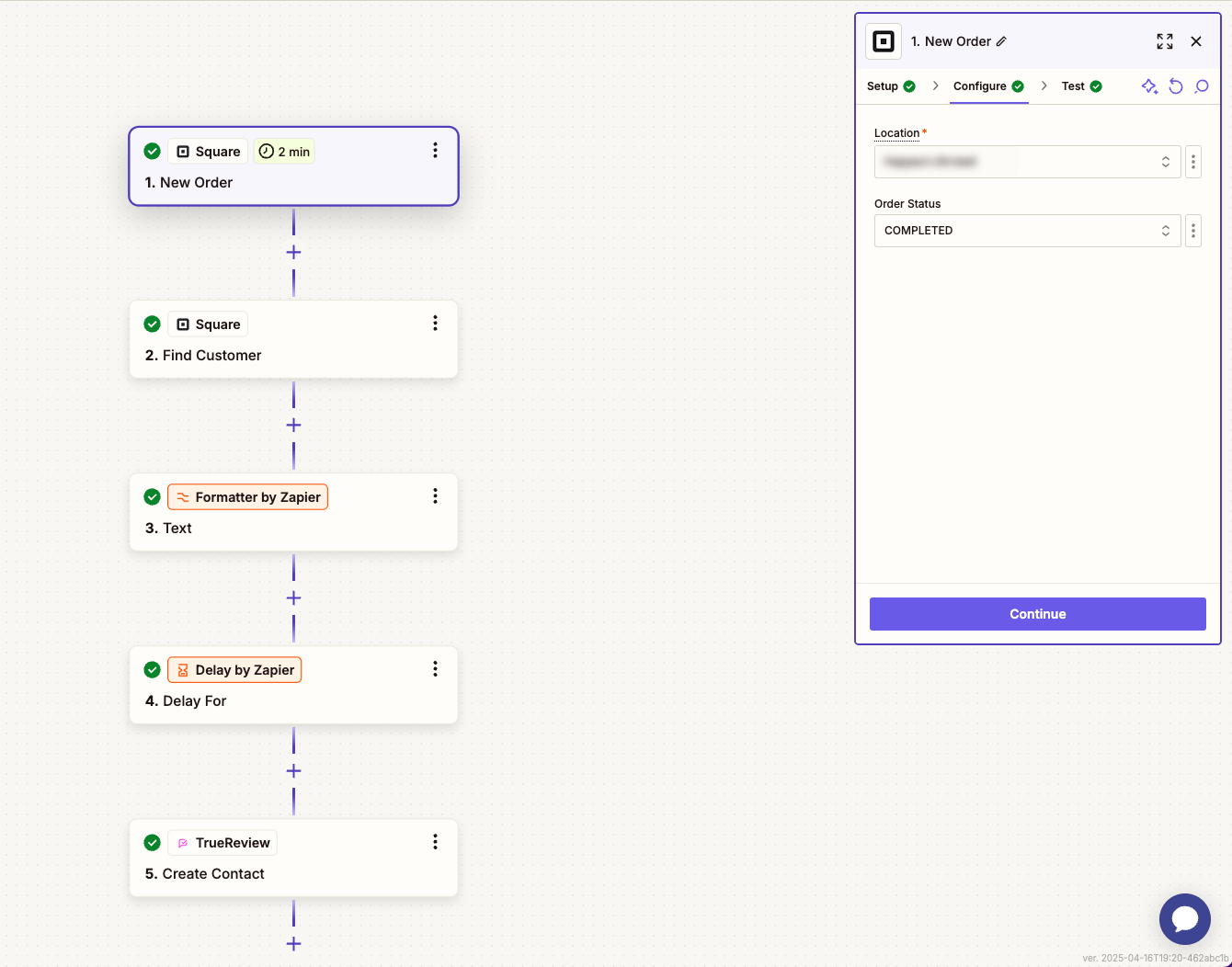
2. Configure your New Order step by selecting your location, and selecting the order status you'd like to use.
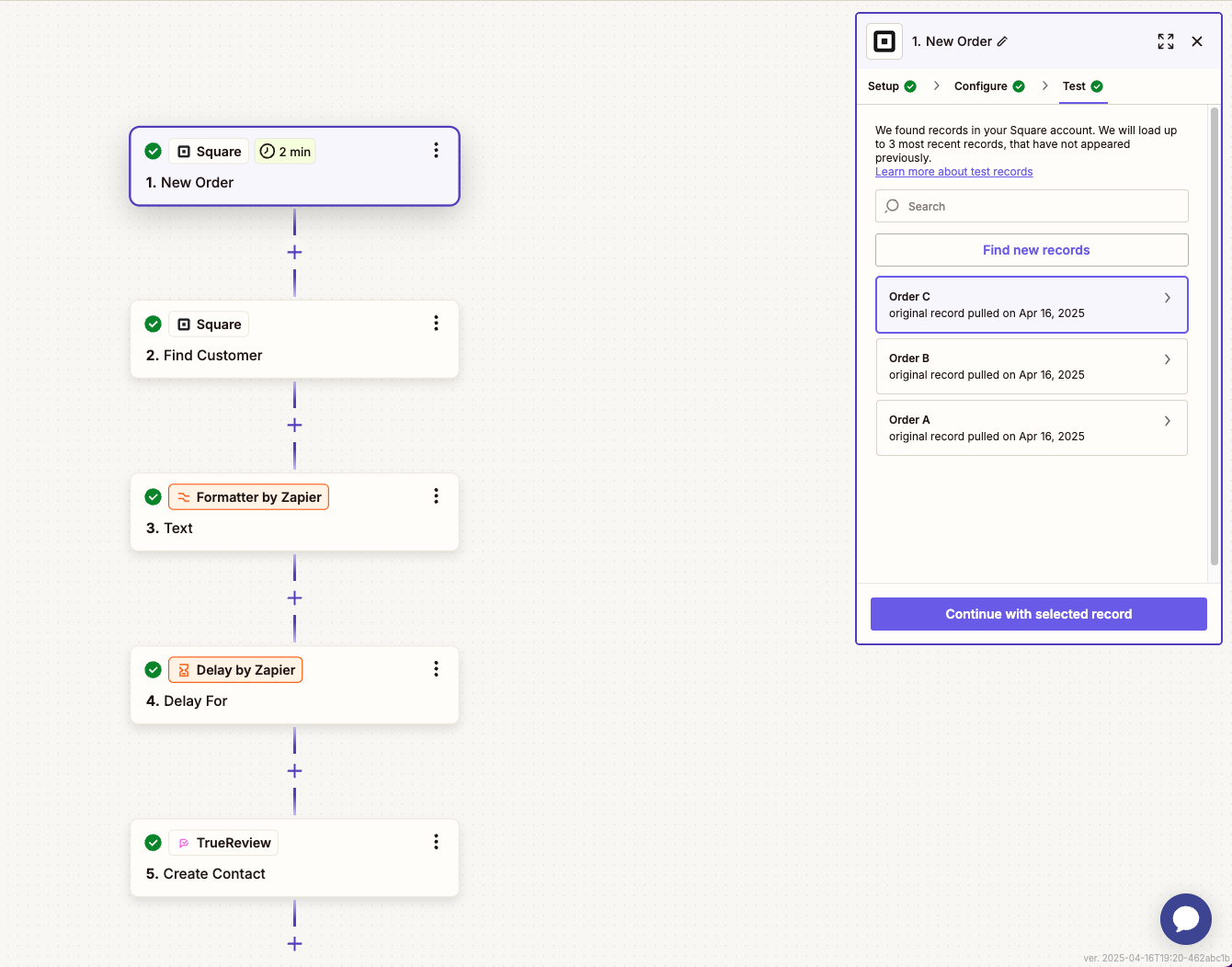
3. Test the trigger to get customer records. We will use these records to make all of the connections.
Once connected, the customer information will be added dynamically as they create new orders.
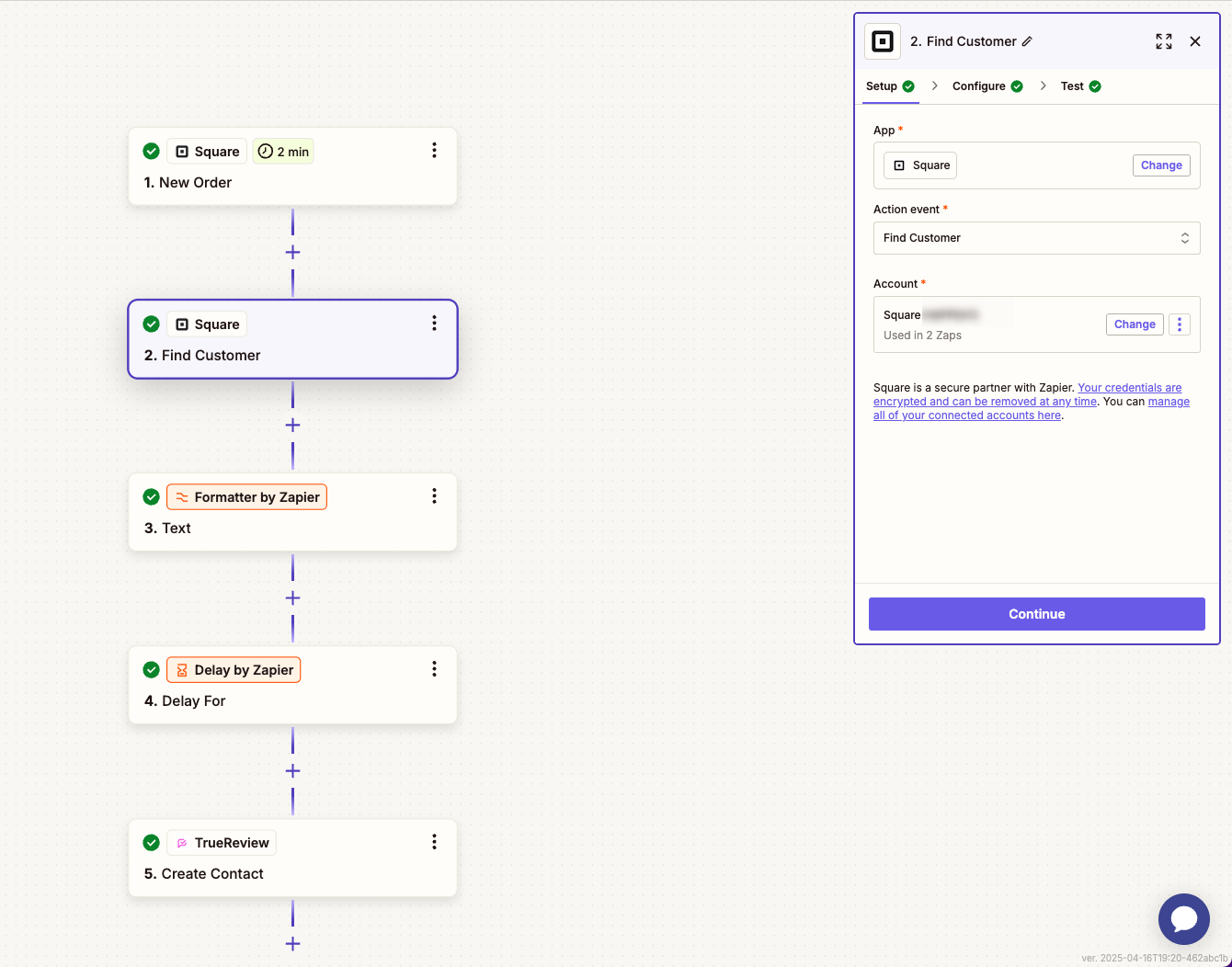
4. Click the plus "+" icon below "New Order" and add Square. This time, select "Find Customer" from the Action event dropdown.
This will find the customer's information from the New Order from the previous step. This is an important step as we need to know what the customer's name, phone and email are to send a review request.
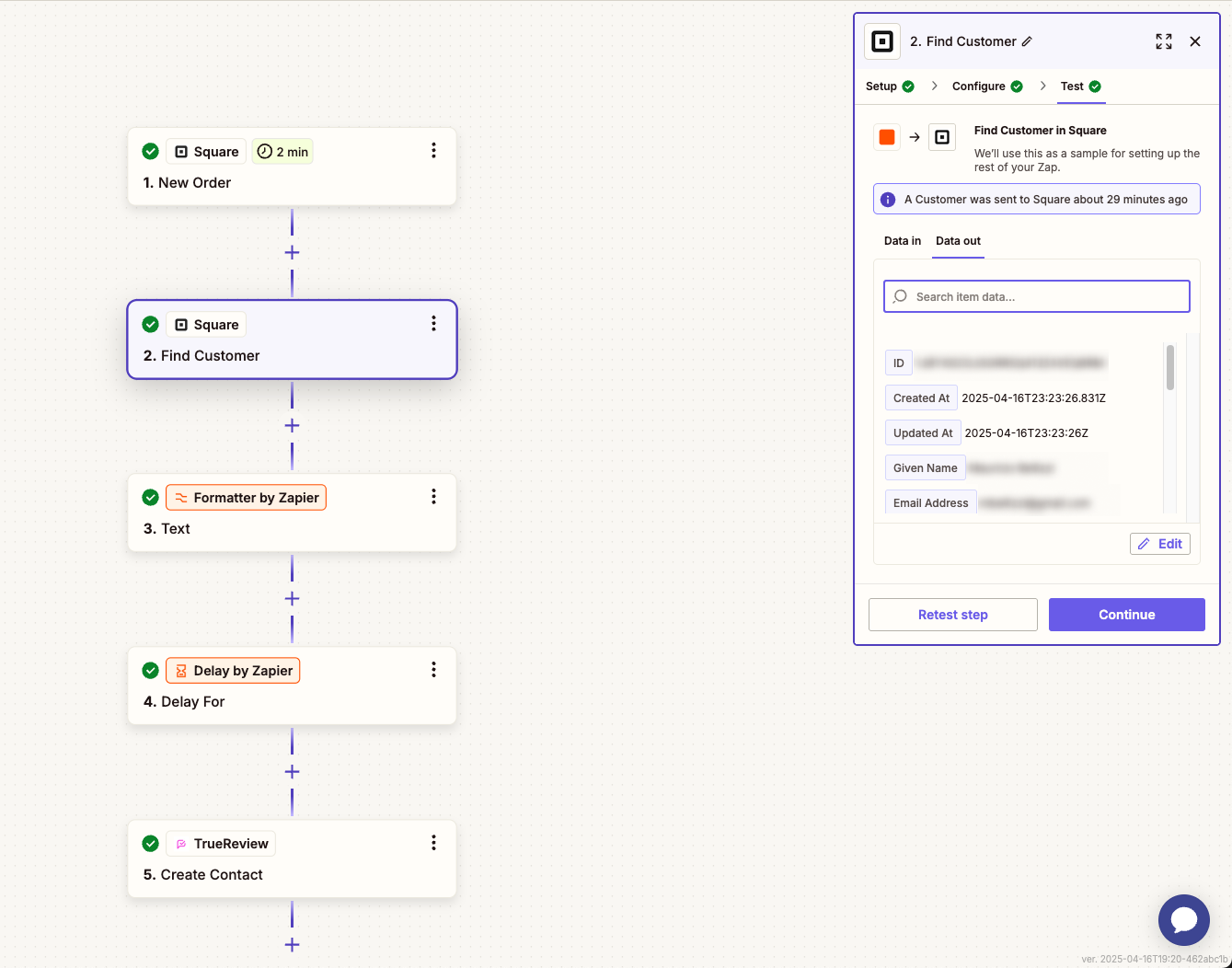
5. Configure the Find Customer event, and add the email address and phone number fields. You can add it by clicking the plus icon to the right of the input fields for "Email Address" and "Phone Number".

6. Click Continue to test your step. This will pull the customer's contact information from the New Order trigger.
7. (OPTIONAL) We recommend only using the First Name in the name input field to make the review requests more personal and less automated/robotic.
You can use the "Formatter by Zapier" app to separate the First and Last Name.
For the "Action event", select "Text"

8. Click Continue. Now, select "string.split".
In the "input" field, click the plus icon, and find the full name, like "Given Name".
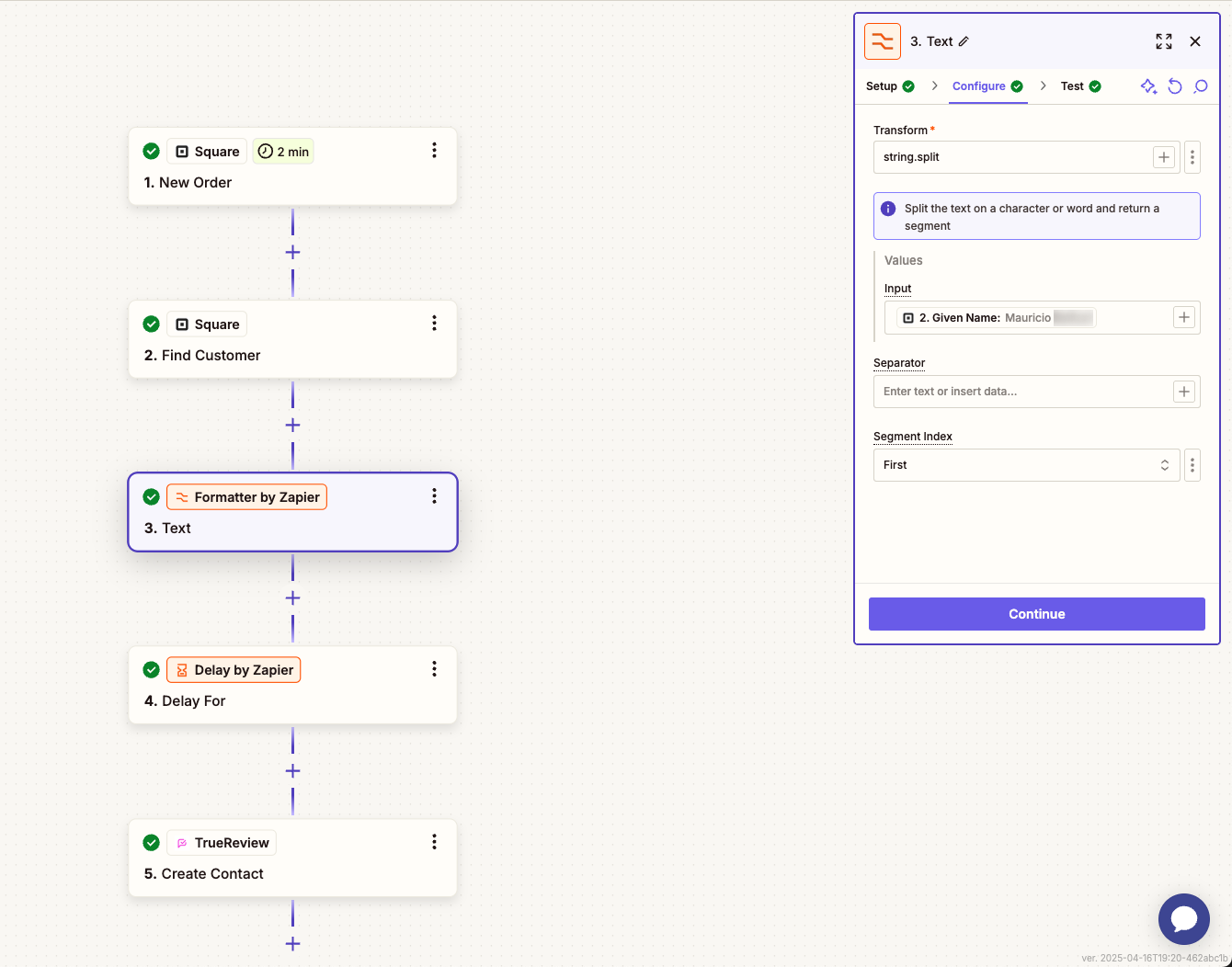
Under the "Segment index" select "First".
Click Continue.
9. The Formatter will extract just the first name from the Given Name field.
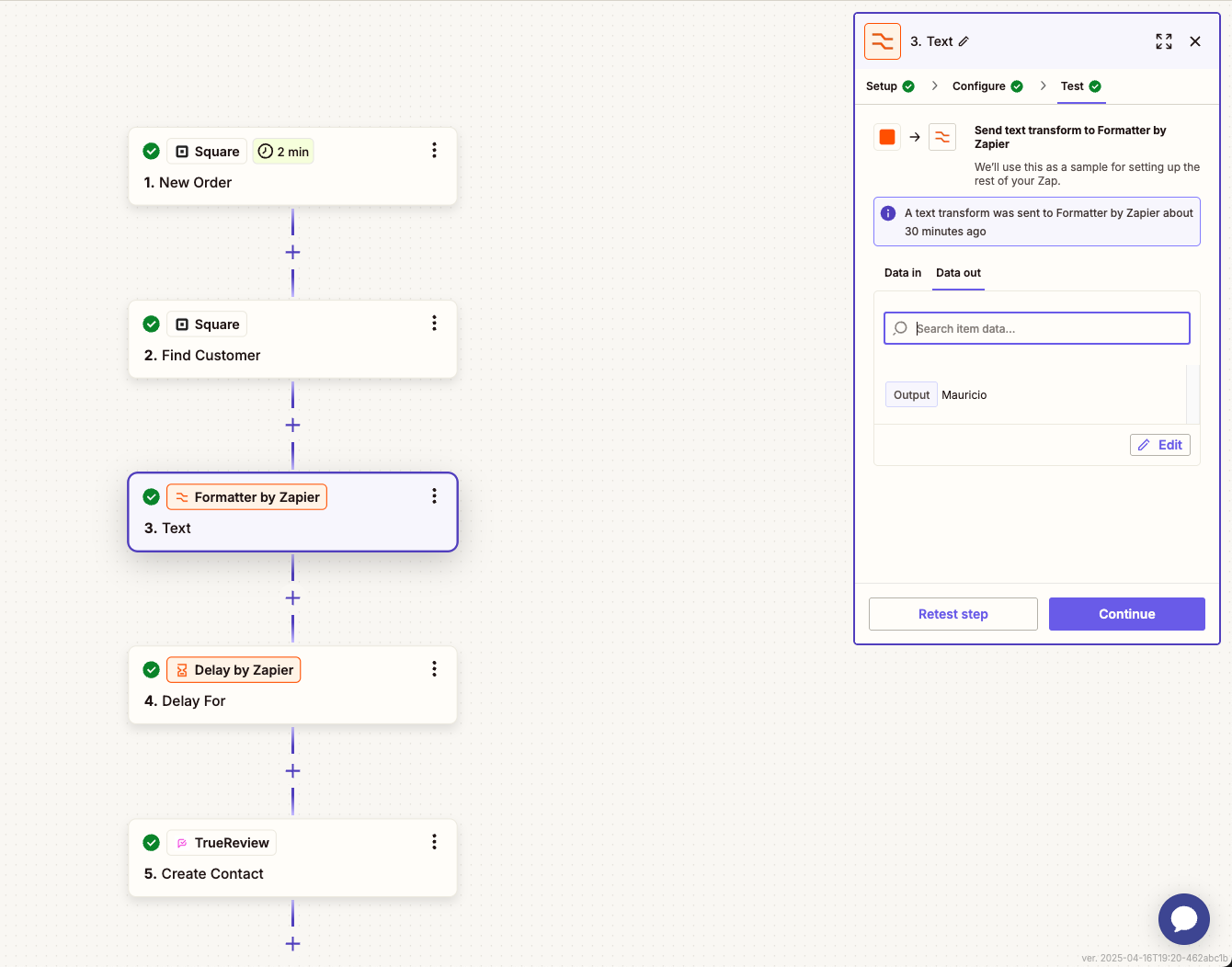
Click Continue
10. (OPTIONAL) Add a delay
You can add a delay so that the request is sent only after a certain period of time after it has been triggered.

Choose Delay For
Then, Select the time period value and unit. In this case, we have it set to wait 30 minutes before sending the review request or creating a contact in your TrueReview contacts page.

11. ACTION step.
This is where you'll connect the data coming in from Square, and the formatter to TrueReview, where it will be processed and a review request will be sent.

Select the "Action event"
There are two action events in TrueReview:
Create Contact: A contact record will be created in your TrueReview contacts page. You can then select it and manually send the request(s).
Create Request: A review request will be sent automatically when the conditions are met.
Sign in and select your TrueReview location. If you have multiple, you will need to add multiple connections in separate Zaps. Or, if you are an advanced user, you can create a flow with multiple connections.
12. Link the customer information to TrueReview
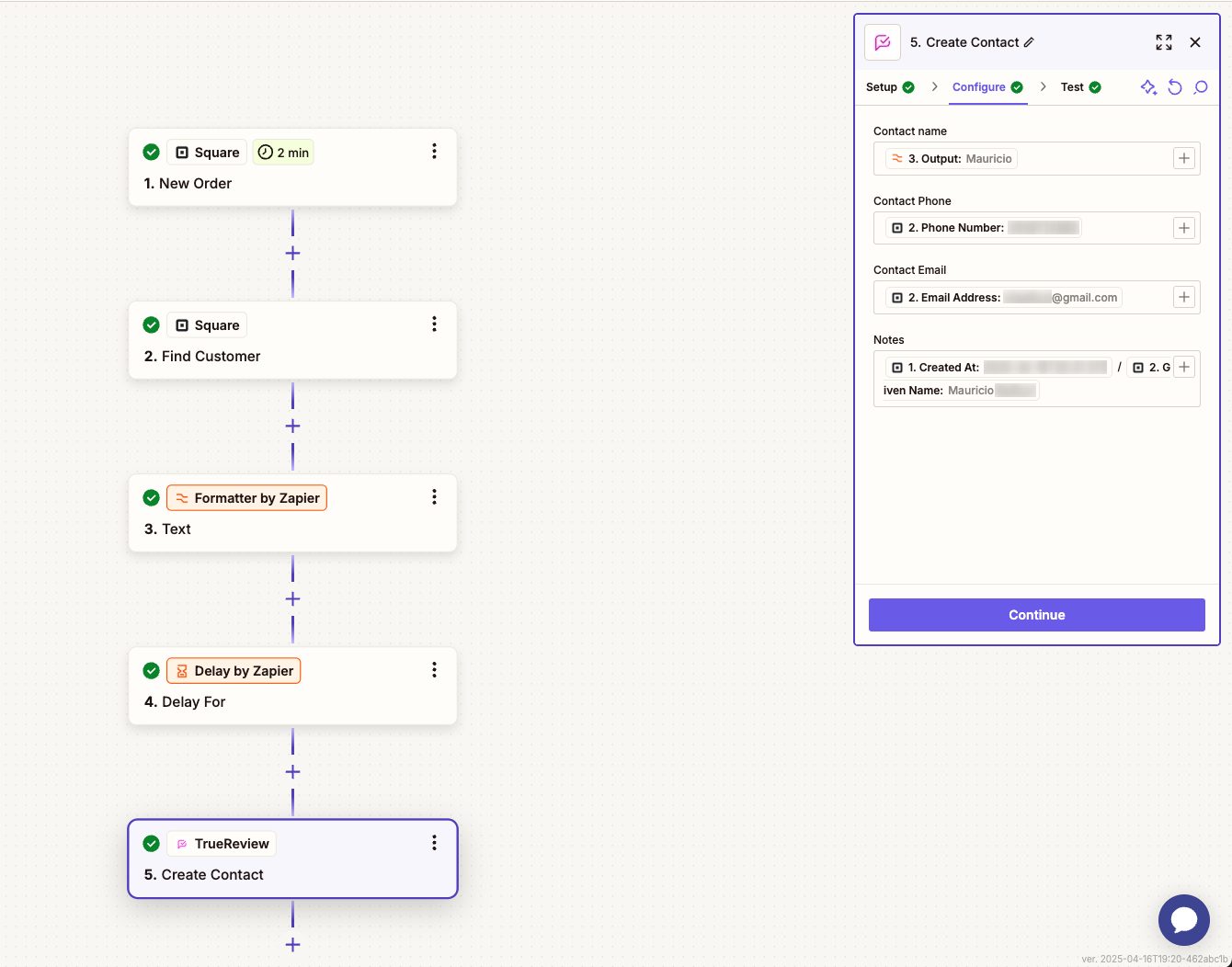
Under the "Contact name" click the plus icon in the input field, and select the Output from the Formatter app. If you're not using a Formatter, then simply select the Name field from Square.
From the "Contact Phone" input field, add the customer's phone number. This will be in the "Find Customer" dropdown list.
Do the same for the "Contact Email".
Under the "Notes" we recommend adding the full customer's name, or any other information like the invoice number, or anything that you can use as a reference. Notes are internal, and only visible to you.
13. Click Continue.
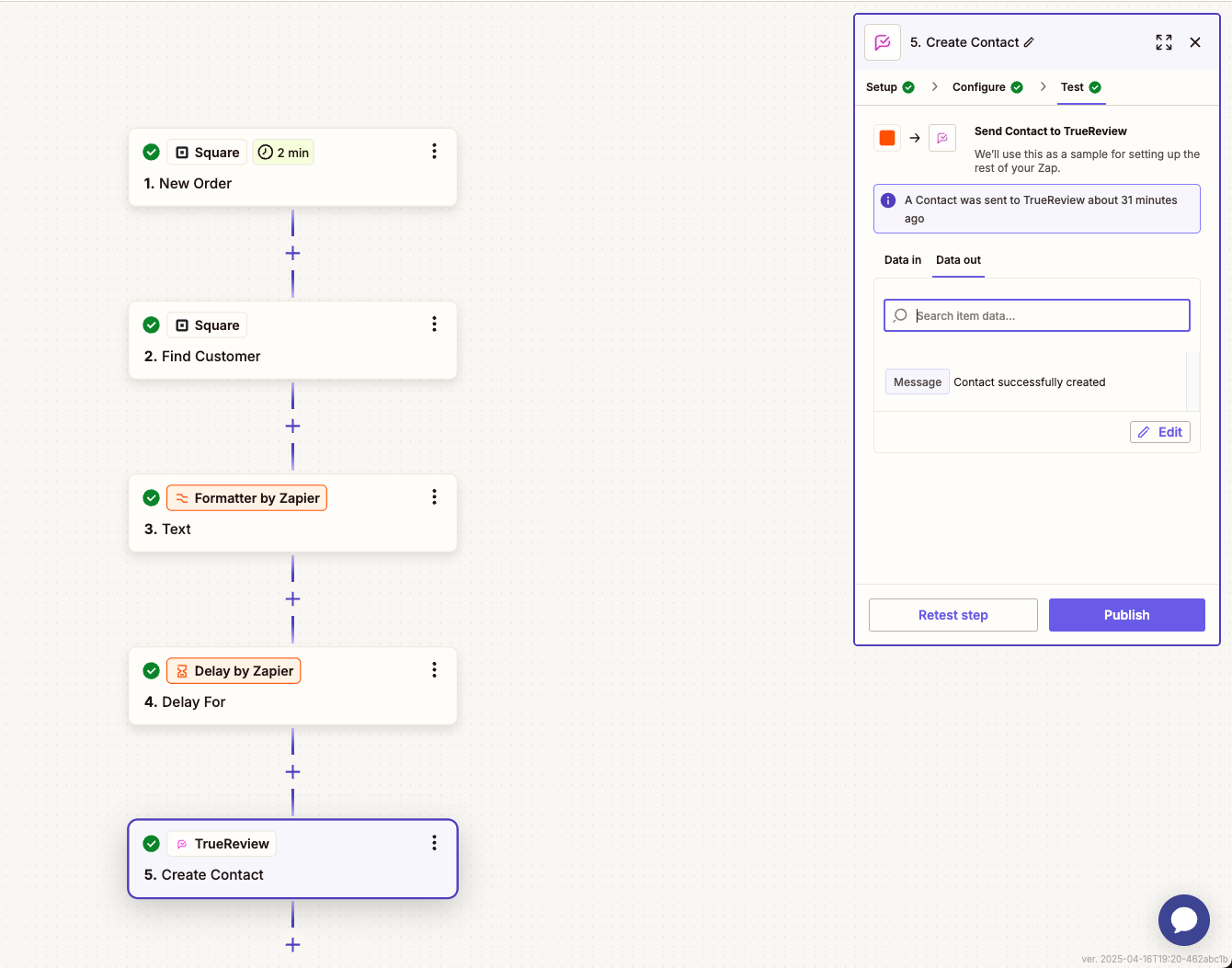
You can test the Zap by clicking the Test button.
Important: If the Create Request action is selected, a review request will be sent to the customer!
Once everything is set, click Publish.
If something isn't working as expected, the most common culprits are: the wrong field being mapped to the contact name, phone, or email (re-check step 12); the trigger event firing on a status you don't actually want to use; or the customer record in Square missing a phone number or email entirely. Open the failed Zap run in Zapier to see exactly which step errored — Zapier shows you the input data and the error message side by side, which usually surfaces the issue in a minute or two.
Your Zap is now LIVE! 🎉
Square is one of dozens of platforms you can wire into TrueReview for hands-off review collection — see the full playbook in our guide to automating Google review requests with tools and workflows. Once requests are firing automatically, the next step is making sure each one converts into an actual posted review — our deeper dives into getting more Google reviews and review management walk through the response and follow-up side.
Going forward, any time the Trigger matches in Square, a review request will be sent to the customer, or, a customer record will be create in your contacts page, depending on what you've selected as your Action event.
Have questions or need help setting up your Zap? Contact us!