BLOG POST
Leaving a Google review is one of the most useful things you can do for a local business you liked — or a warning you can give other customers about one you didn't. Reviews shape which businesses show up in search, how they rank on Google Maps, and whether the next person decides to walk in. And it takes about a minute.
This guide walks through exactly how to leave a Google review on desktop and in the mobile app, what to do if you have a direct review link, whether anonymous reviews are possible, why your review sometimes doesn't show up, and — for business owners reading this — how to make the whole process effortless for your customers.
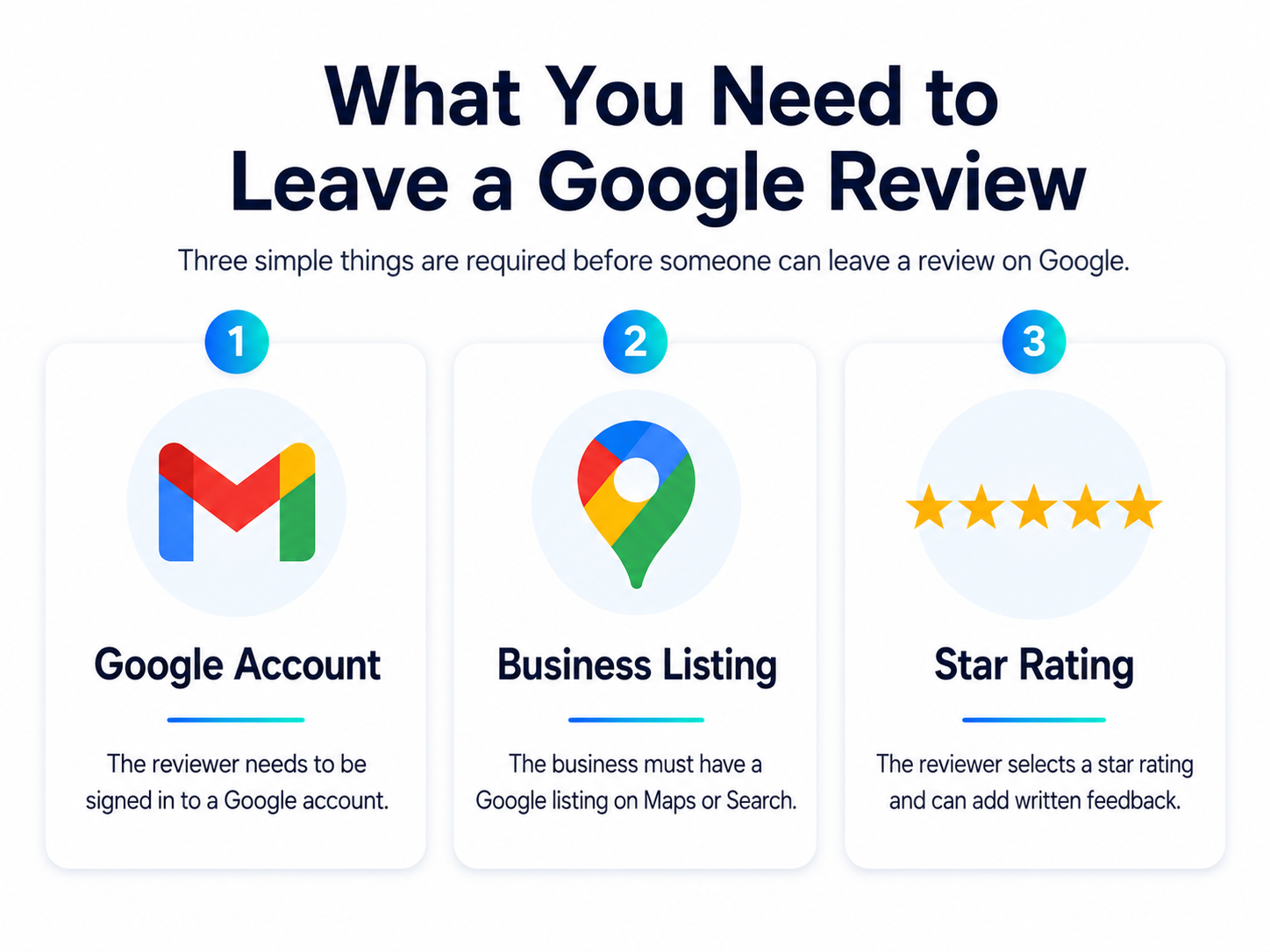
There's only one real requirement: a Google account. That's the same account you use for Gmail, YouTube, Google Photos, or an Android phone. If you have any of those, you already have what you need.
A few things worth knowing up front:
If you don't have a Google account yet, you can create a free one at accounts.google.com in a couple of minutes — you can even use an existing non-Gmail email address to sign up.
If you're on a laptop or desktop computer, here's the fastest path:

That's it. Your review is live within a few seconds, though it can occasionally take longer to appear publicly while Google's systems process it.
Most people leave reviews from their phone. The steps are nearly identical on iPhone and Android.
If you've recently visited a place, Google sometimes prompts you to review it automatically through a notification or in the "Contributions" section of your profile — an even faster shortcut.
Increasingly, businesses share a direct review link — by text message, email, a QR code on the receipt, or a card. This is the easiest path of all, because it skips the searching.
When you tap a direct Google review link, it takes you straight to the "Write a review" form for that exact business. You'll still need to be signed in to your Google account, but you go directly to the star selector and text box — no searching, no scrolling, no risk of reviewing the wrong location.
A direct review link usually looks something like this:
https://search.google.com/local/writereview?placeid=...
That placeid value at the end is your business's unique identifier on Google, and you'll need it to build the link yourself. Our guide covers how to find your Google Place ID.
If you're a business owner who wants to hand customers a link like this, our guide on how to find your Google review link fast walks through three ways to get yours, and our free Google review link generator creates one (plus a QR code) in a few seconds.
Short answer: no, not truly. Google removed anonymous reviews back in 2018 specifically to cut down on fake and malicious reviews. Every review is now tied to a Google account, and your account name and profile photo appear publicly alongside what you wrote.
What you can do is reduce how identifiable you are — for example, by adjusting the display name on your Google account to a first name and last initial, or by using a separate account for reviews. But Google still links the review to an account internally, and complete anonymity isn't possible.
We cover the nuances, the workarounds, and the limits in depth in our guide: Can you leave an anonymous Google review?
You posted a review and it's not there. This is common and usually harmless. The most frequent reasons:

If a review disappears entirely after being live, it was most likely caught by Google's algorithm rather than removed by the business — business owners can flag reviews but can't delete them directly.
If you're just trying to track down the reviews you've already left, that's a separate path through your account. We cover this in more depth in our guide to how to see my google reviews.
If you run a business and you're reading this to understand the process your customers go through, the single biggest takeaway is this: every extra step costs you reviews. A customer who has to open Google, search your name, pick the right location, scroll to reviews, and find the button will often give up before finishing. A customer who taps a direct link and lands on the star selector finishes in seconds.
The highest-converting approach is to send a direct review link by text or email shortly after the visit, while the experience is fresh. For the full playbook on timing, channels, and templates, see our complete guide to getting more Google reviews and our 25+ review request templates and scripts.
One important caveat: keep it compliant. Asking for honest reviews is fine, but offering discounts or gifts in exchange for reviews, filtering customers by how happy they seem before sending the link, or specifying a star rating all violate Google's policies and the FTC's rules. Ask everyone, ask honestly, and let customers write what they want.

TrueReview sends your direct Google review link by SMS and email automatically after each visit or job — so customers land on the review form in one tap instead of hunting for your business. Compliant by design: ask everyone, no gating, no incentives. Start a free 14-day trial.
Leaving a Google review takes under a minute: sign in, find the business, pick your stars, write a sentence or two about your experience, and post. The most helpful reviews are specific — they name what was good or bad and give the next customer something concrete to go on. Whether you're sharing a great experience or a cautionary one, your review genuinely shapes the decisions of the people who read it next.
Knowing what to actually say is the part most people get stuck on. For a step-by-step walkthrough, see our guide on how to write a google review for a business.