BLOG POST
This is a practical guide to building review request automation inside GoHighLevel. It assumes you have an account and a sub-account set up, and that you want requests going out without anyone remembering to send them.
Nothing works until this is done. Go to Settings → Integrations in the sub-account and connect the Google account that manages the profile. Confirm it is linked to the correct location — if you manage several profiles under one Google login, this is where people connect the wrong one and wonder why reviews land against another branch.
Once connected, GoHighLevel generates the review link automatically. You do not need to build it yourself.
If you are pointing at a site other than Google, you can add a custom review URL instead in the template settings.
Easy to miss and it silently breaks everything downstream. Review requests must be toggled on in the sub-account settings before any of the send methods work. If your workflow appears to run but no requests appear in the Reputation tab, check this first.
Go to Reputation → Settings and edit the SMS and email copy. Some practical notes:
Keep the SMS short. Every 160 characters is another billed segment, and long messages read as marketing rather than a personal ask. Aim for one or two sentences plus the link.
Use the customer's first name. Template variables pull from contact fields. A named ask outperforms a generic one noticeably.
Name the business. People receive a lot of texts. “How did we do?” from an unknown number gets ignored.
Multiple review links in email. A more recent addition lets you place several review platform links in a single email template, with URL validation to catch broken links. It pulls in your connected platforms and lets you set the order and visibility of each.
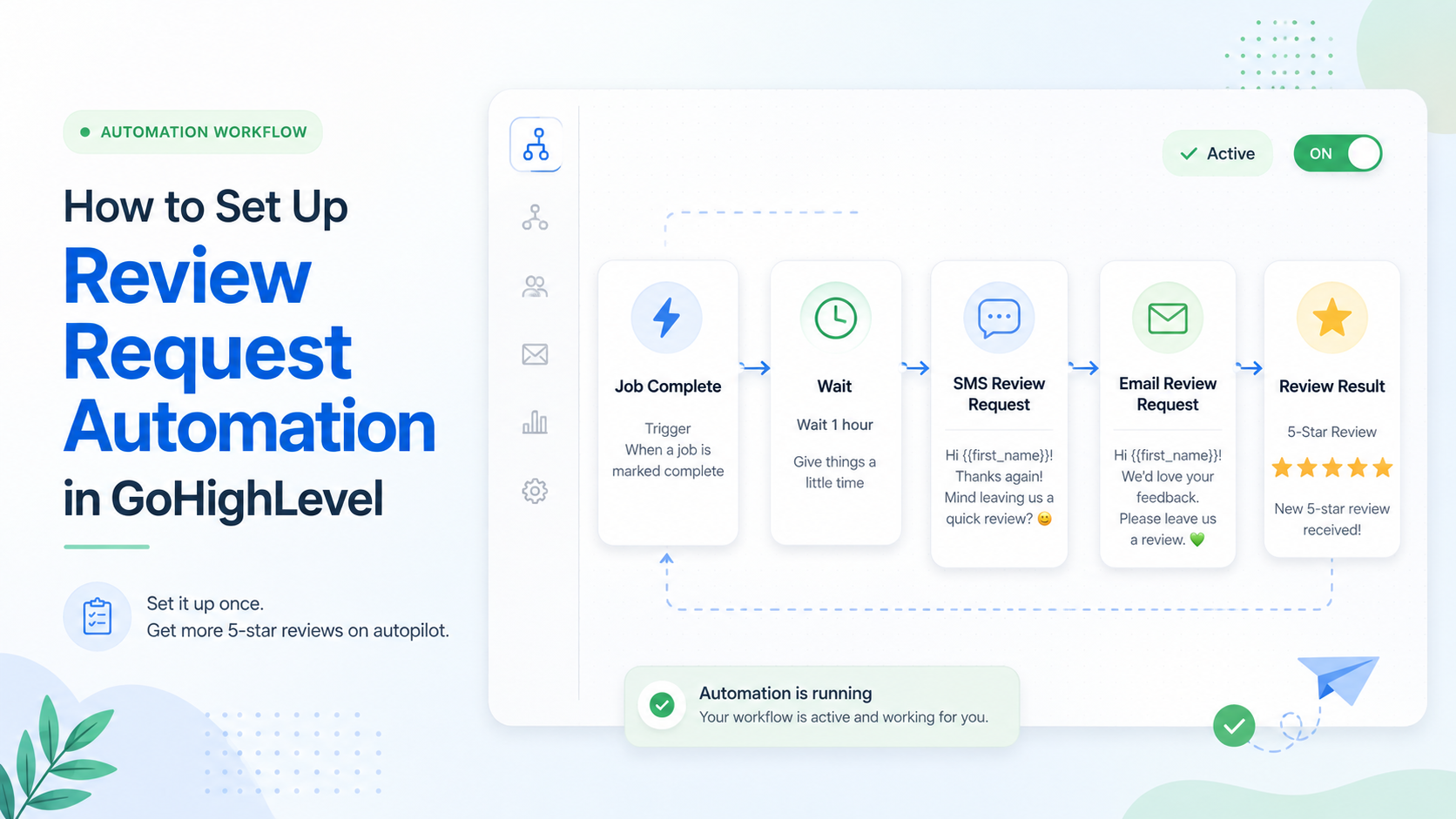
This is the part that makes it automatic. Go to Automation → Workflows and create a new one.
Choose your trigger. The right one depends on your business:
Add a wait step. Do not send immediately. Timing is the most underrated variable in review collection and it varies by industry: a restaurant should ask within hours, a roofing company should wait several days for the homeowner to see the finished work in daylight, a medical practice needs a different window again. Start with 24 to 48 hours and adjust based on your response rate.
Add the Send Review Request action. Select the channel — email or SMS. SMS response rates are substantially higher for most local businesses, but email costs a fraction as much, so many operators send SMS to mobile-first customers and email to the rest.
Note the sender behaviour. If the contact has an assigned user, the workflow action sends the request from that user rather than from a generic account. For businesses where the technician, agent or hygienist has the relationship, that is worth setting up deliberately — it materially improves response rates. Sending manually via Quick Actions instead attributes the message to whoever is logged in.
Here is where GoHighLevel asks more of you than the marketing suggests. The Send Review Request action sends one request. There is no built-in reminder sequence.
This matters more than any other step, because follow-up is the single largest lever on review volume. A first ask typically converts a modest share of customers. The second and third asks often double or triple total reviews collected. Sending once and stopping leaves most of the value on the table.
To build a sequence you continue the workflow: add a wait step of two to three days, then a conditional branch checking whether the contact has left a review, then a second request if not, another wait, and a final gentle ask. In practice teams often approximate the “has reviewed” check with a tag applied manually or via a separate automation, because review status is not exposed as a clean workflow condition.
It works. It is also a build that has to be created, tested and maintained in every sub-account you run.
The Reputation tab shows request status. Four values matter:
Queued — created but not yet sent, either because of a send queue or because the template is configured to send after a delay. Sent — dispatched. Delivered — confirmed received. Note that this confirmation comes back for SMS only; the email provider does not return a delivered status, so email requests will not show it. Failed — did not deliver, most often an invalid phone number.
Check failures weekly. A steady failure rate usually means bad phone data at the point of capture, which is a form problem rather than a review problem.
Four things to plan around before you rely on this.
Follow-up is DIY. Covered above, and the biggest one. Budget the build time.
Review sites are limited. Native coverage is Google Business Profile and Facebook. If your customers review you on Angi, Zillow, Avvo, Healthgrades or similar, wider sources require the Yext-powered Online Listings add-on at $30/month per sub-account — and that handles listings and monitoring rather than routing requests to a specific directory.
Multi-location reporting. One location per sub-account, with no native roll-up view. Comparing six branches means opening six sub-accounts or exporting to a spreadsheet.
Every sub-account needs its own build. Snapshots help, but they capture a point in time. Configurations drift as clients get customised.

We make TrueReview, where multi-step drip sequences are the default rather than something you build. This guide is written to actually work in GoHighLevel regardless — if you are staying, follow it and you will collect meaningfully more reviews than sending once.
Segment by channel. Branch the workflow on whether a mobile number exists: SMS if it does, email if not. Cuts wasted sends.
Ask the right customers. Not everyone should be asked. Consider a condition excluding anyone with an open support ticket or a complaint tag.
Test your timing. Run 24 hours for a month, then 72 hours for a month, and compare. The right delay is industry-specific and worth finding empirically.
Watch your segment count. Paste your final SMS template into a segment calculator. Trimming a two-segment message to one halves that line of your bill.
If the follow-up build is the part you would rather not maintain across every account, that is the main thing a dedicated tool removes. Start a free 14-day trial of TrueReview — multi-step SMS and email drip campaigns that stop automatically when the review lands, no branch logic required.