BLOG POST
Are you a property owner or a property management company? Do you want to make your property management tasks easier? Property management systems integrated with accounting software like QuickBooks might be just what you need.
This strong combination can help you manage your residential and commercial properties better. It allows you to track income and expenses accurately. You will also save valuable time in your daily operations.
In this article, you'll learn how to use property management software with QuickBooks effectively. We'll explain integration basics, help you set it up, and show you how to manage financial transactions easily. By the end, you will understand how this integration can help your property management business. This will also make your accounting easier.
Property management software designed for property management and integrated with QuickBooks can significantly enhance your operations. This powerful combination offers a centralized platform for efficiently managing financial transactions related to property management. By integrating these tools, you can streamline your accounting workflows and improve overall efficiency.
QuickBooks integration allows you to track rental income, property expenses, and other financial transactions in an organized manner, providing robust accounting features. This ensures accurate and up-to-date financial records, giving you a clear overview of your property's financial health. The software makes rent collection easy with a tenant portal for automatic payments and invoice generation.
One of the key benefits of this integration is the ability to automate tenant invoices, transaction matching, and reconciliation. This automation not only saves time but also reduces the likelihood of errors in your financial records. The two-way sync between your property management software and QuickBooks keeps your data current in both systems.
To connect property management software with QuickBooks, follow a few easy steps. You can often do this using a mobile app. The process varies depending on the software you're using, but it's generally straightforward.
For example, with DoorLoop, you can set up the integration in just a few minutes. Here's a quick guide:
Once you complete the integration, it will enable and sync data automatically. This easy connection makes sure that changes in DoorLoop appear in QuickBooks. This saves you time and reduces mistakes.
Another option is Propertyware Sync. This free tool lets you sync rental income and expense transactions. You can sync these from specific portfolios to a chosen QuickBooks company file.
This integration organizes files correctly in QuickBooks. It also provides a transfer report for each sync. This gives you better control over your investment properties.
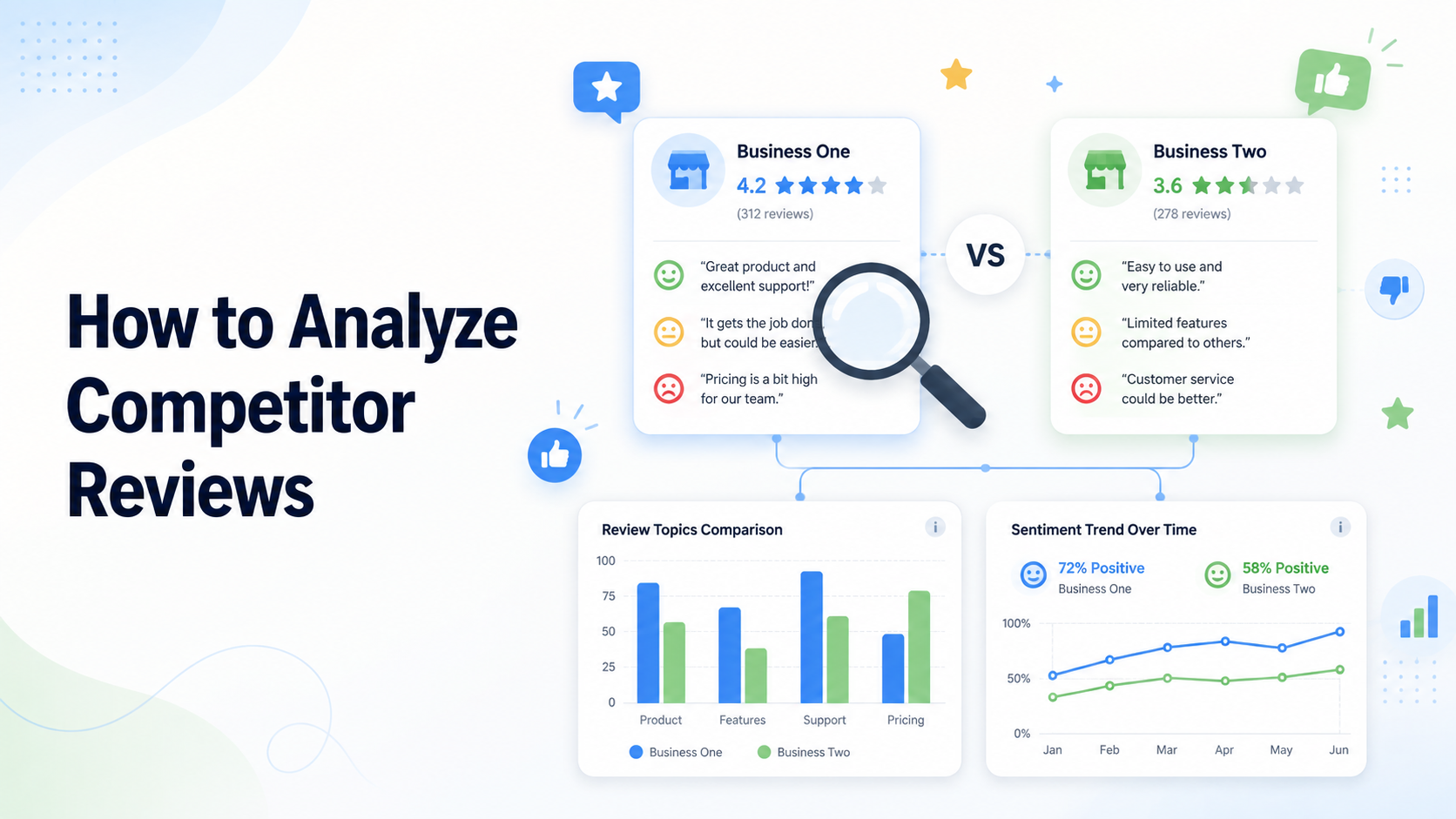
One workflow most landlords don't connect into this stack: tenant review automation. The same lifecycle events your property management software already tracks — lease signed, maintenance ticket closed, lease renewed, move-out completed — are the natural moments to ask a tenant for a Google or Yelp review. Automated review request software hooks into these events and texts or emails a review request automatically, which directly affects how quickly your vacant units fill. Strong tenant reviews on Google and apartment listing sites shorten vacancy windows more than any single line item in your QuickBooks expense ledger.
The other side of that workflow is handling reviews that shouldn't be there at all — landlords see a distinct pattern from denied applicants and former tenants. Related: our complete guide on how to remove problematic google reviews for property management companies.
When you connect property management software with QuickBooks, you can make your money management easier. This helps you keep your bank account data in sync. QuickBooks helps you track your income, expenses, and taxes in real time. This reduces the time needed to manage these tasks.
You can set up properties as customers. You can also set up tenants as sub-customers. This helps you organize your financial data better.
One of the key benefits simplifies rent collection. You can set up automatic rent payments in QuickBooks Online. This helps your tenants know when their rent is due.
You can also create invoices easily. This feature reduces the likelihood of missed payments and helps maintain a steady cash flow.
Expense tracking becomes more efficient with QuickBooks. You can categorize various expenses associated with property management, such as maintenance costs, utilities, and property taxes. This detailed tracking aids in generating comprehensive financial reports for better decision-making.
Once you can see those categories clearly, turnover costs tend to stand out — and flooring is usually the largest recurring line among them. Our guide to the best carpet for rental property breaks down pricing and features.
The bank reconciliation feature in QuickBooks helps you compare your bank statements with the software. This ensures your financial records are correct. This provides a clear view of your property's financial health. It also makes tax preparation easier by organizing income and expenses.
Connecting property management software with QuickBooks helps simplify property management tasks and financial processes. This strong combination helps landlords and property managers run their operations better. It covers everything from collecting rent to tracking expenses.
This integration saves time and reduces mistakes. It also improves decision-making. It does this by automating routine tasks and providing real-time financial insights.
For property managers weighing QuickBooks vs property management software, exploring this integration is worth considering to boost efficiency and financial accuracy. The smooth connection between property management tools and QuickBooks helps manage properties well and keeps accurate financial records.
The property management field is changing. Using new technology can help businesses stand out. It can also lead to growth and success.