Stop Chasing Reviews: Automate Customer Feedback with FieldRoutes and TrueReview

In the pest control and field service industry, your reputation is everything. One glowing review can bring in a dozen new customers. But here's the problem: your technicians are racing from job to job, and manually following up for reviews? That's falling through the cracks.

What if every completed service automatically triggered a review request—no manual work, no forgetting, no hassle? That's exactly what you can achieve by connecting FieldRoutes to TrueReview through Zapier.

In this guide, we'll walk you through the complete setup process. It's more technical than some integrations, but don't worry—we'll break it down step by step.

Why This Integration Matters

Before we dive into the how-to, let's talk about the why. In field service businesses, timing is everything when it comes to reviews. You want to catch customers right after they've experienced your excellent service—when the relief of a pest-free home or a perfectly maintained lawn is fresh in their minds.

But your office staff is busy scheduling, dispatching, and handling customer calls. Your technicians are in the field. Who has time to manually send review requests?

The answer: nobody. That's why automation isn't just convenient—it's essential for building a strong review presence that drives new business.

What You'll Need

Before getting started, make sure you have:

  • An active FieldRoutes account with admin access
  • A TrueReview account
  • A Zapier account (free or paid tier works)

Got everything? Great. Let's build your review automation system.
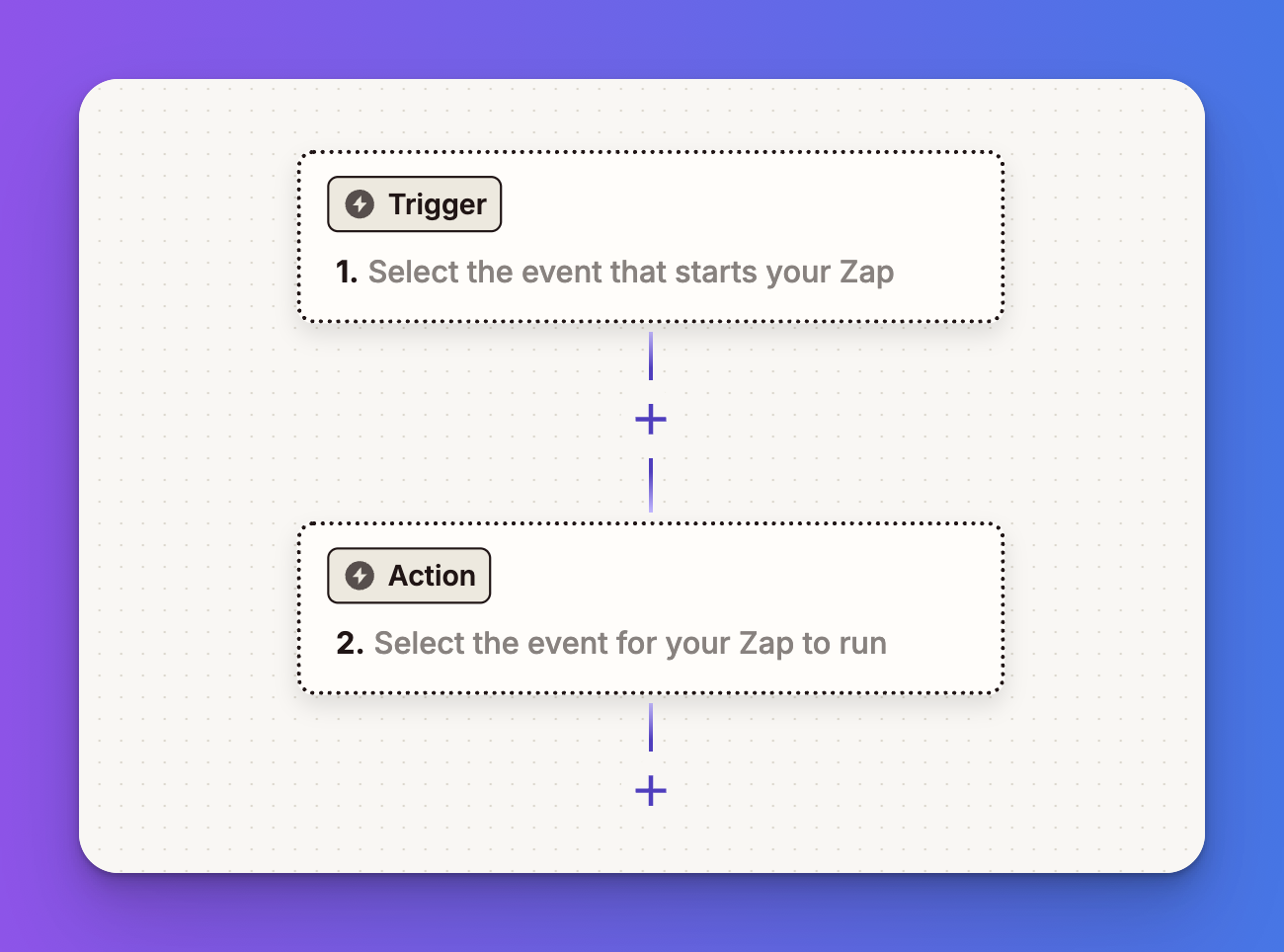
Part 1: Create Your Zap

  1. Log in to your Zapier account, then click Create a new Zap to start setting up a new automation.
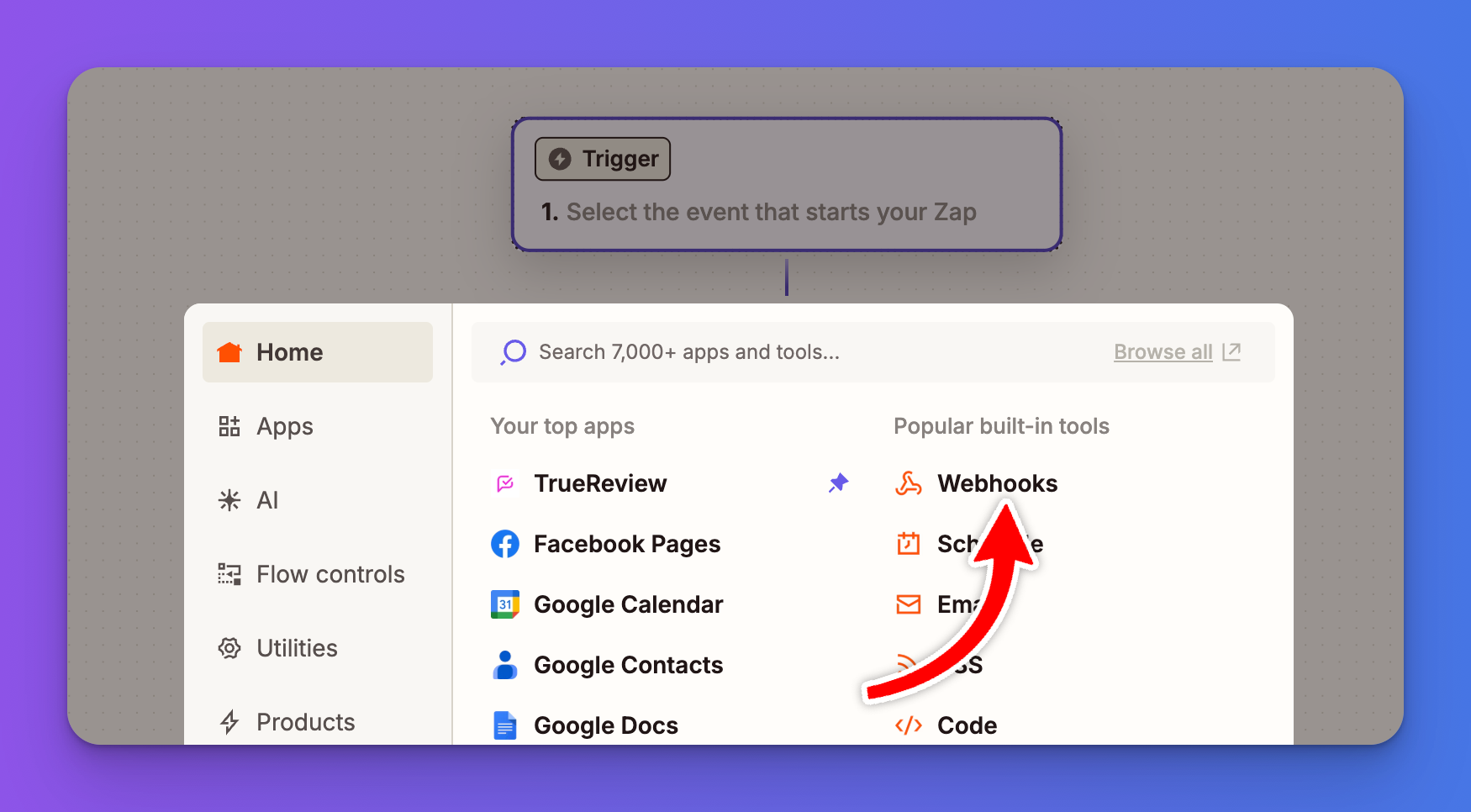
  1. Click on Trigger and choose the trigger app by searching for Webhooks by Zapier, then select it as your trigger application.
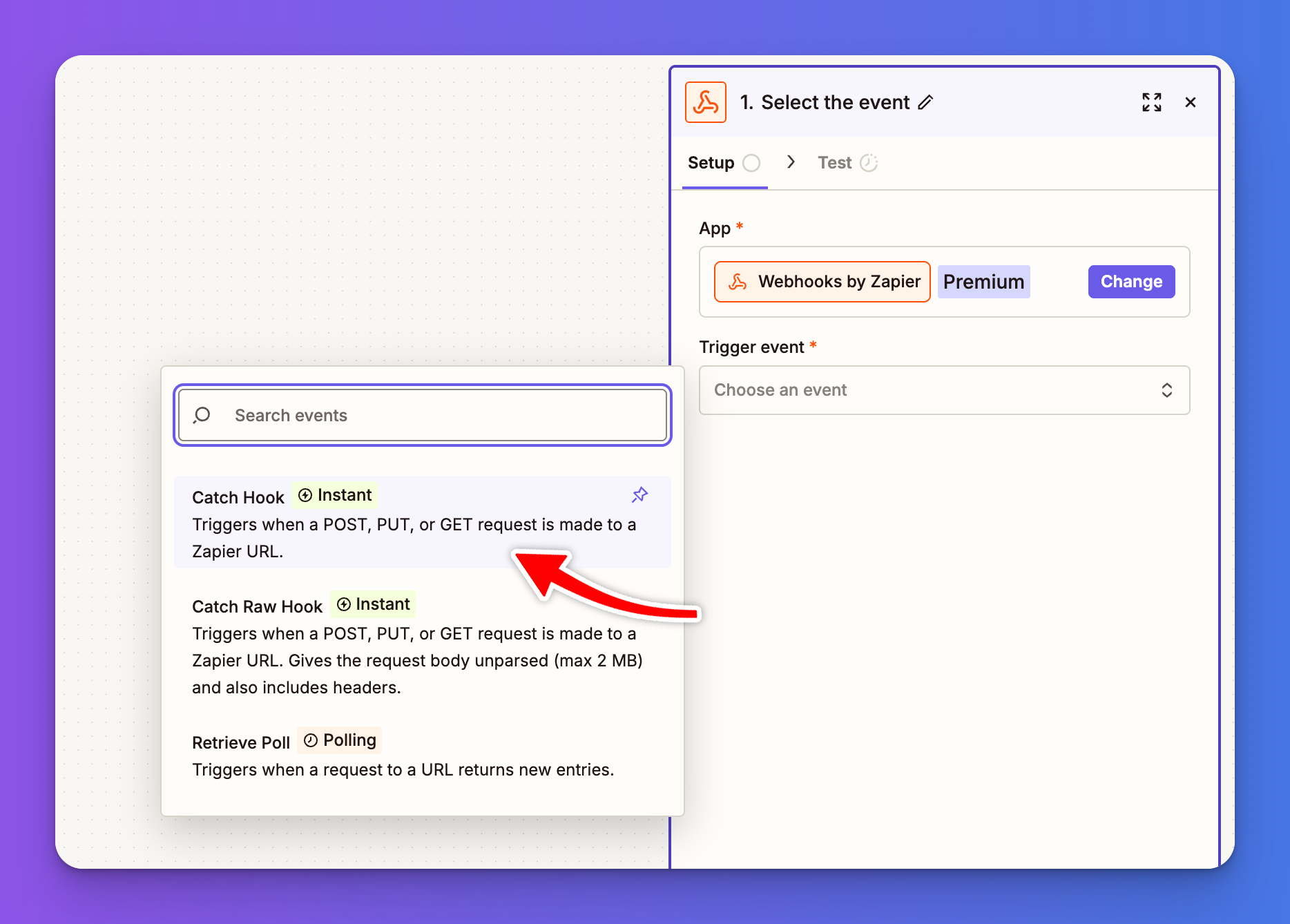
  1. Select a trigger event by choosing Catch Hook. This will generate a unique webhook URL that FieldRoutes will use to send data to Zapier.

  1. Click Continue
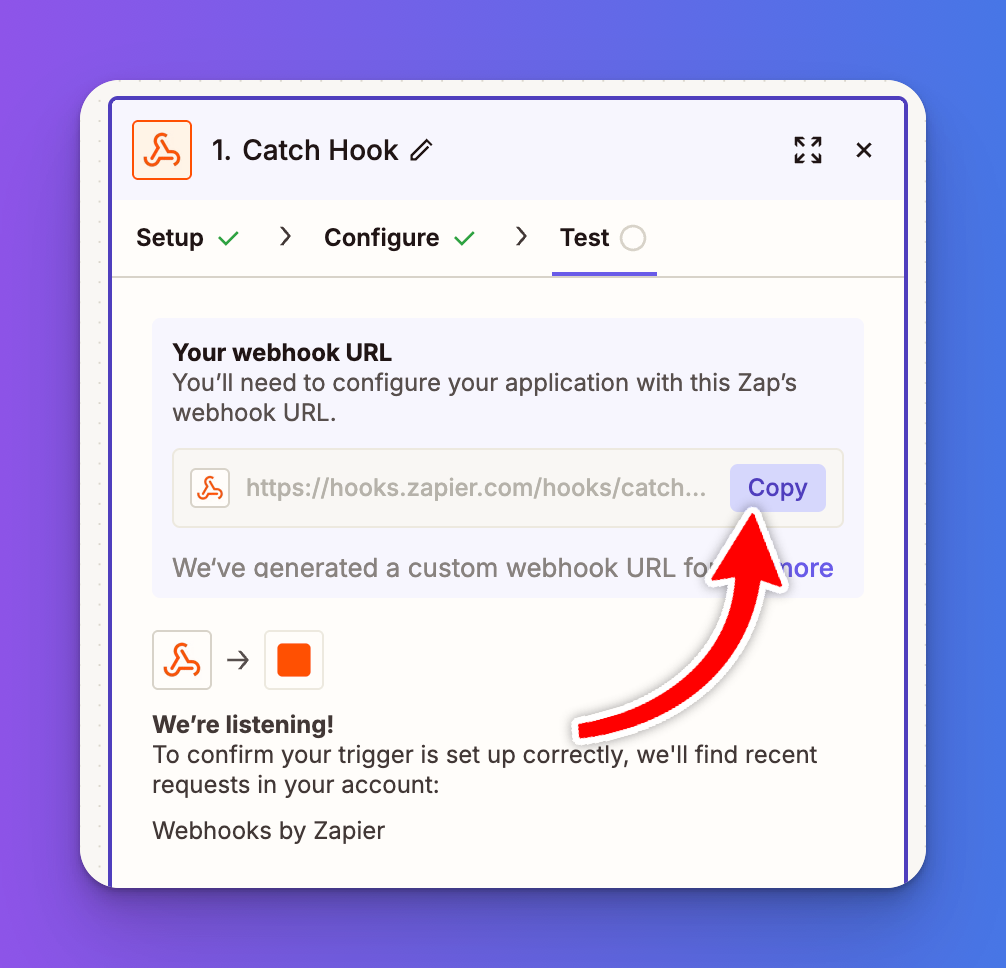
  1. Zapier will generate a custom webhook URL. Copy this URL, as you’ll need to paste it into FieldRoutes in the next step.
  1. Keep the Zapier setup open so it can wait for a test submission, then go to FieldRoutes and send a test payload to trigger the webhook.

Part 2: Configure a Trigger Rule in FieldRoutes

  1. Log in to FieldRoutes
    1. Sign in to your FieldRoutes account.
  2. Navigate to Trigger Rules
    1. Go to Settings and locate the Trigger Rules section.
  3. Create a New Rule
    1. Click the option to create a new trigger rule.
  1. Define the Trigger Condition
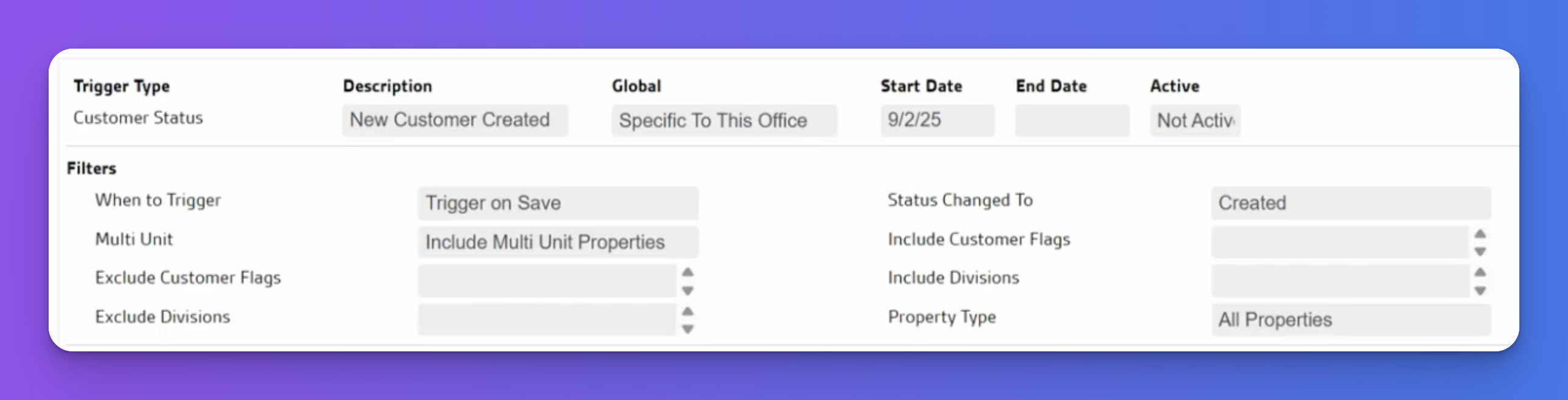
    • Select the type of trigger rule (for example, Customer Status).
    • Set the condition that will cause the trigger to fire, such as when a technician taps “Trigger on Save.”
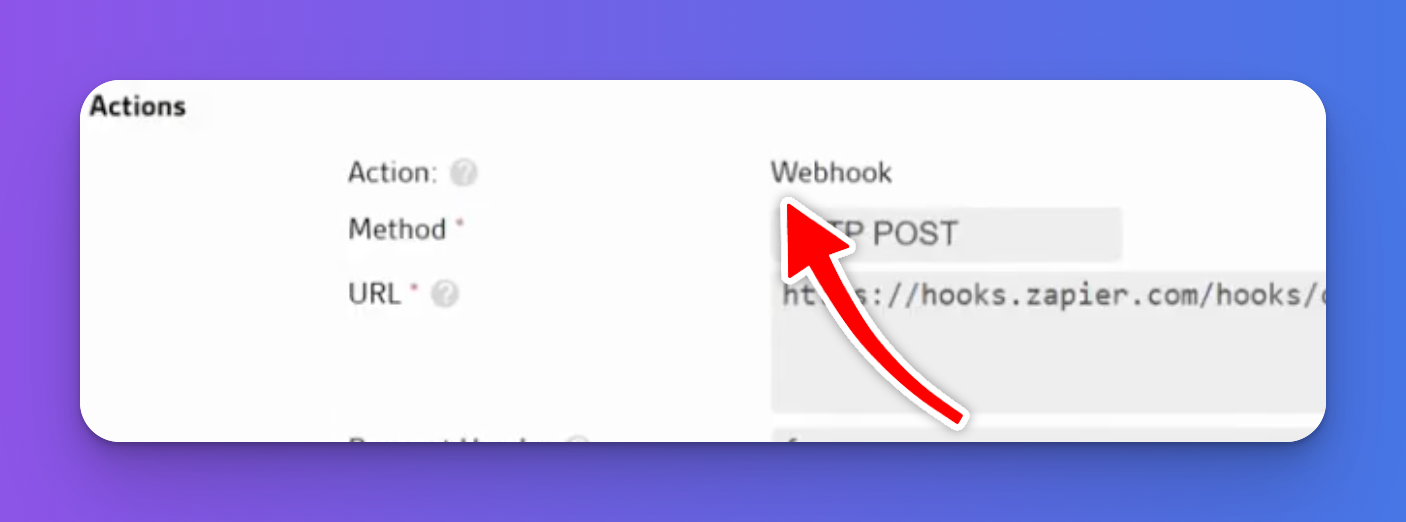
  1. Set the Action to Webhook
    1. Choose the action that sends a webhook or external notification.

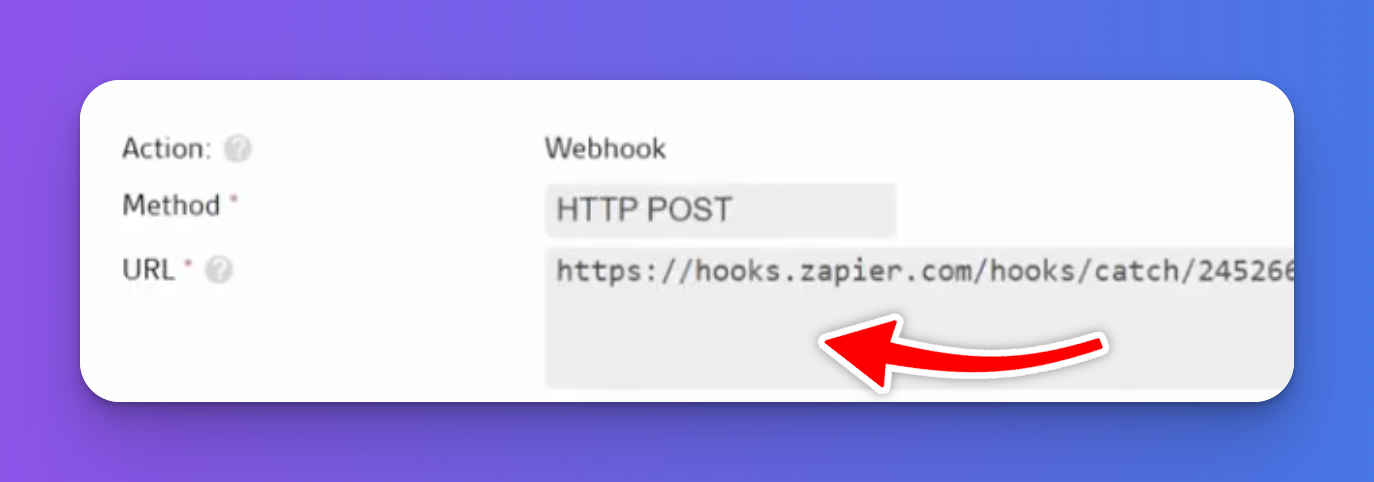
    1. Paste the webhook URL you copied from Zapier into the endpoint URL field.

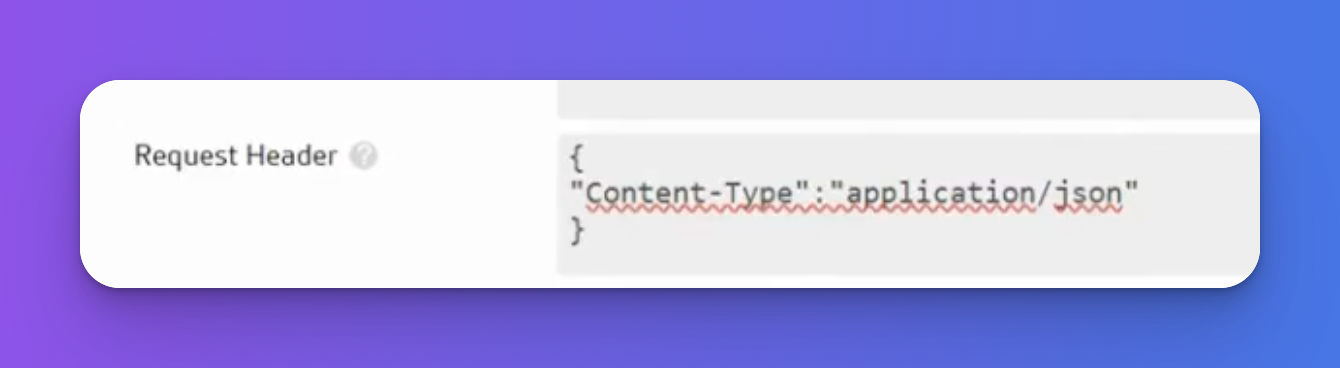
    1. Under Request Header, paste the following code:
    2. {"Content-Type":"application/json"}

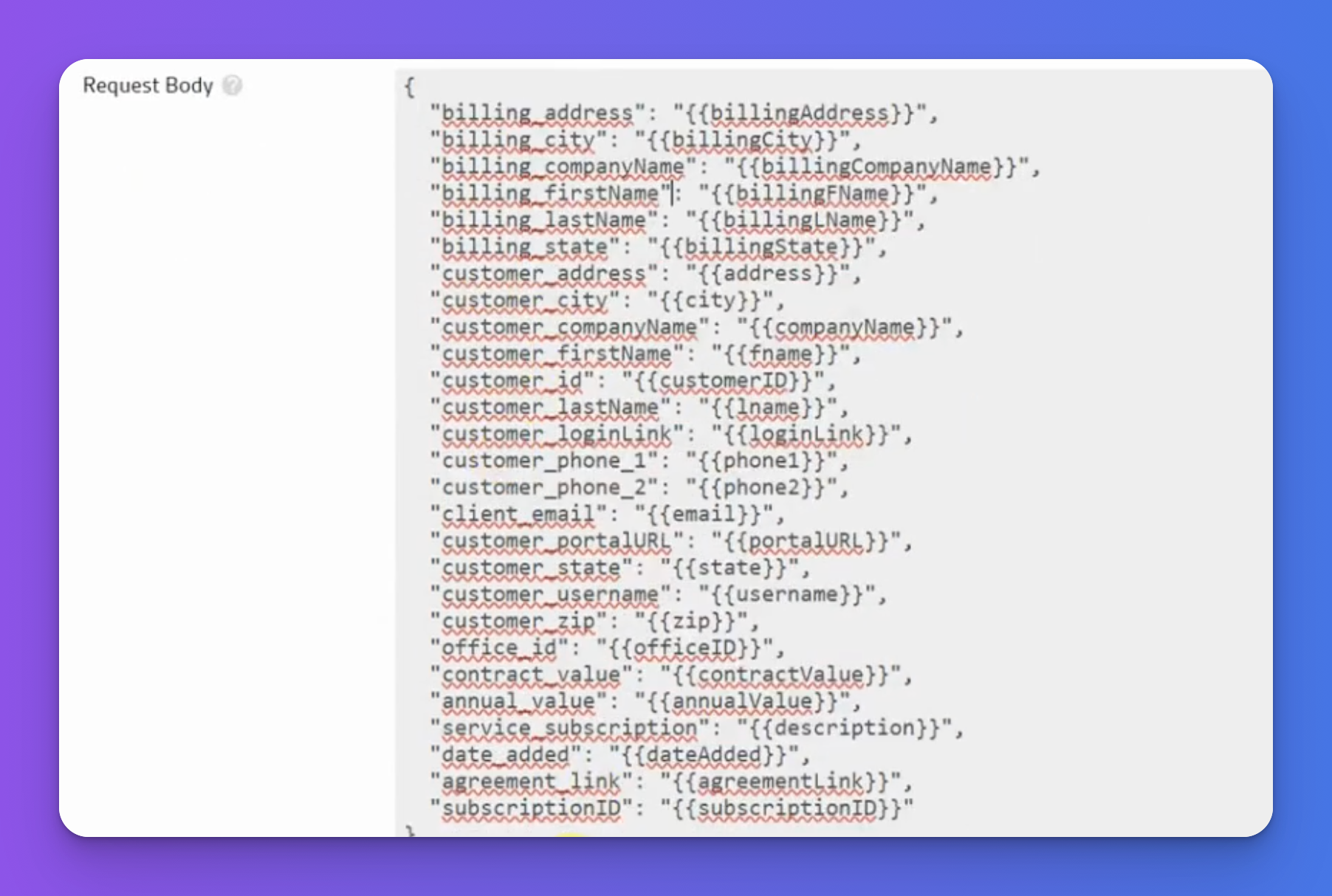
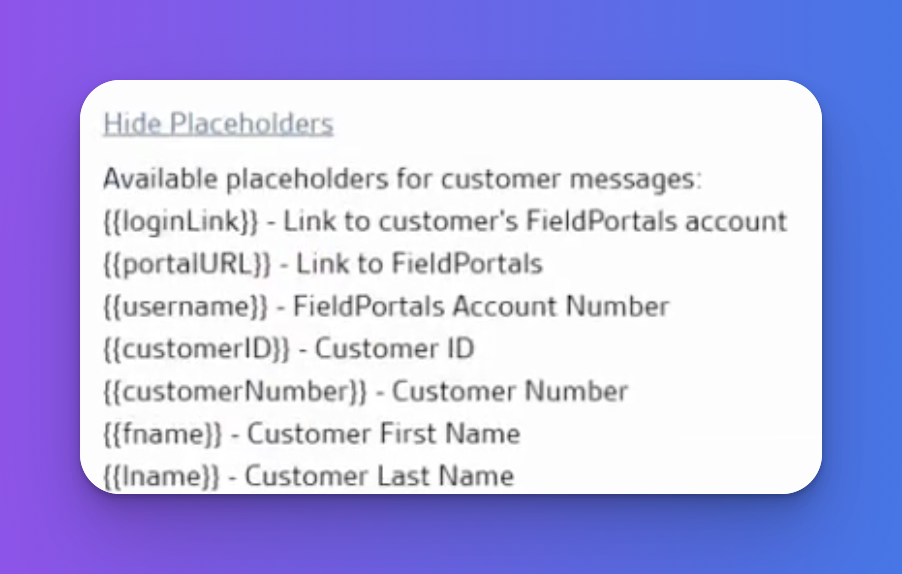
    1. Select all relevant customer and job data fields you want to send to Zapier.

    1. You can find all placeholders at the bottom of the page:
    1.  

Save the Rule

Save and activate the trigger rule.
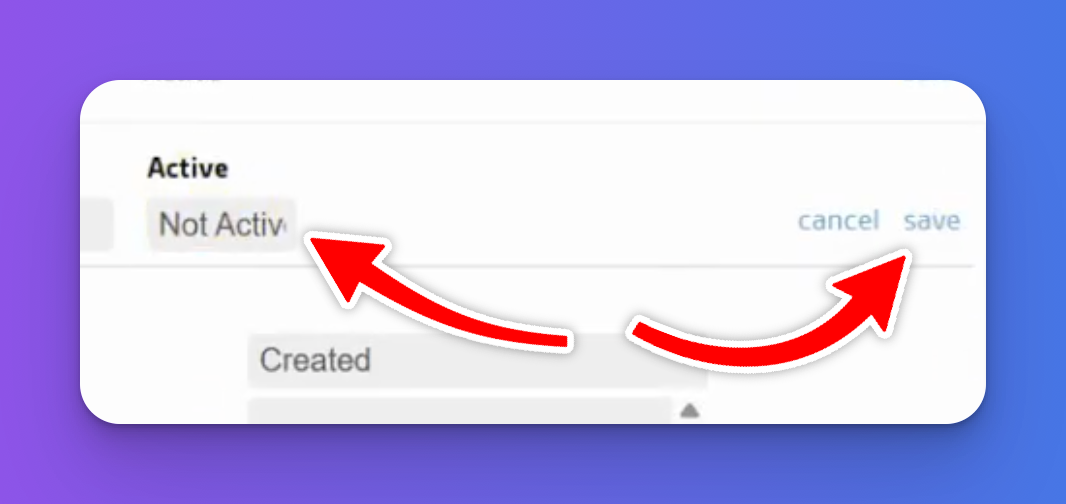
Send Test Data

Perform the action in FieldRoutes that meets the trigger condition to send a test payload to Zapier.

Head back to the Zapier Catch Hook step, and click Test Trigger
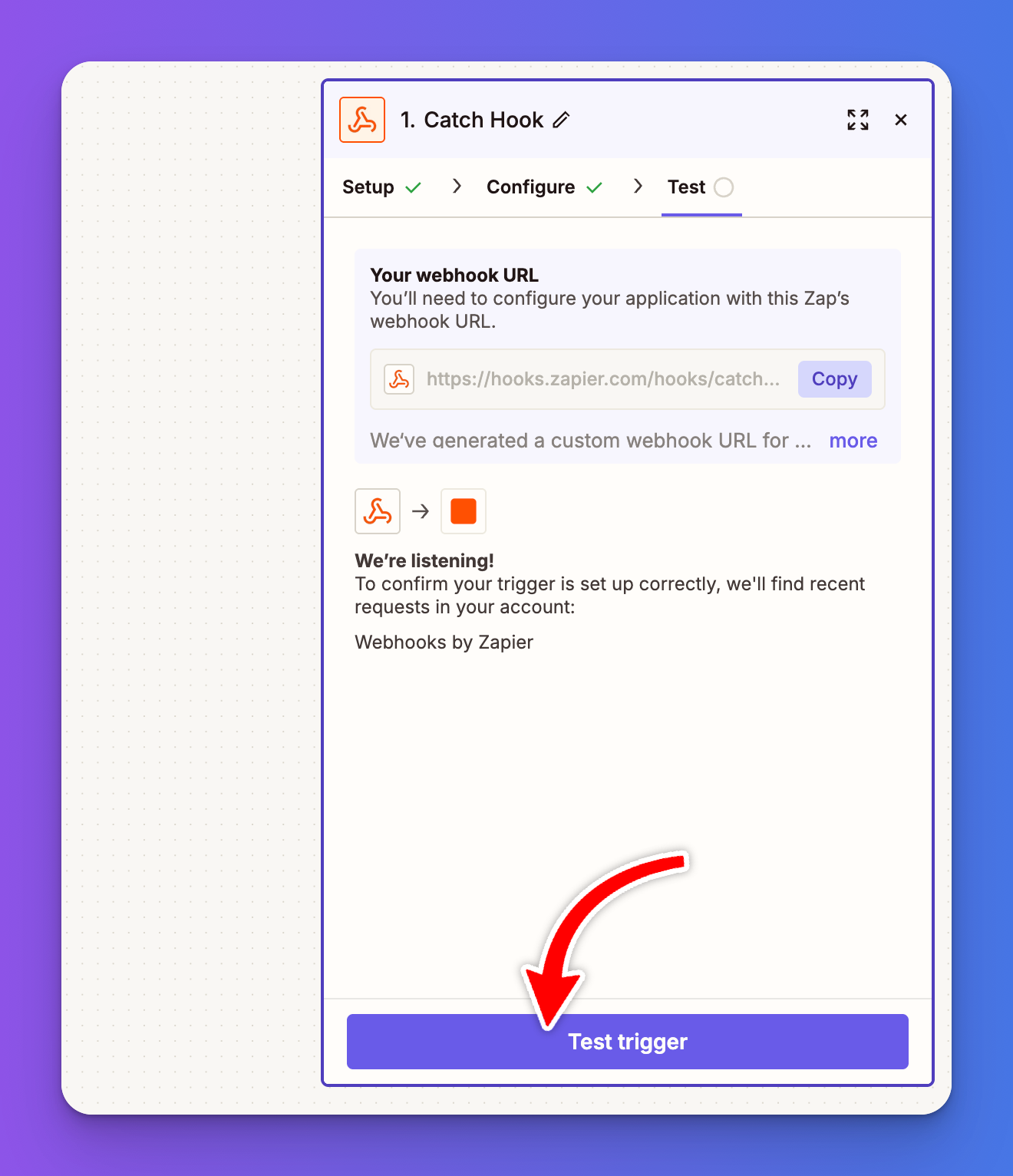
You should see the customer data from your test.
Part 3: Configure the TrueReview step

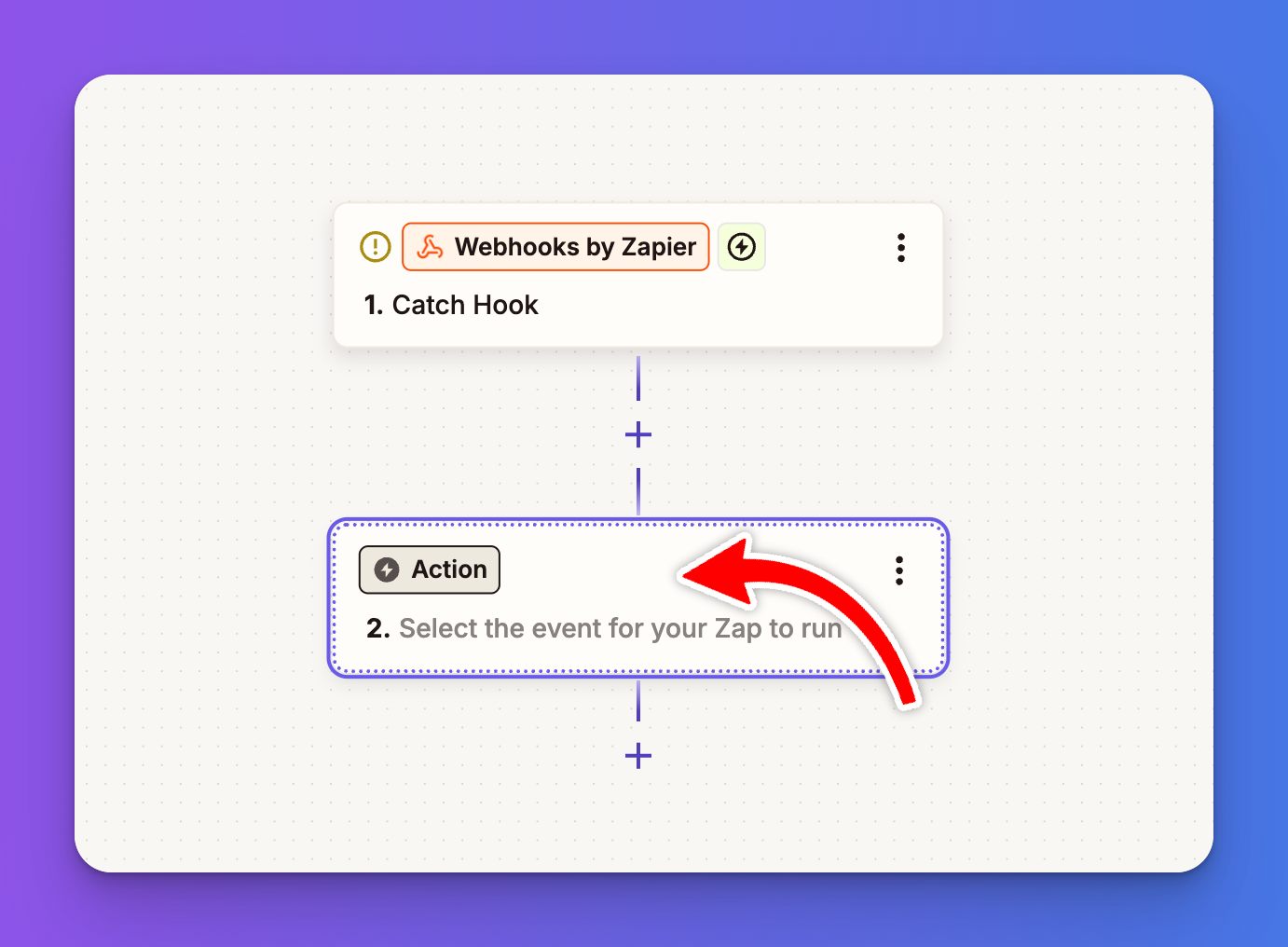
  1. From the Zap, click the Action step.

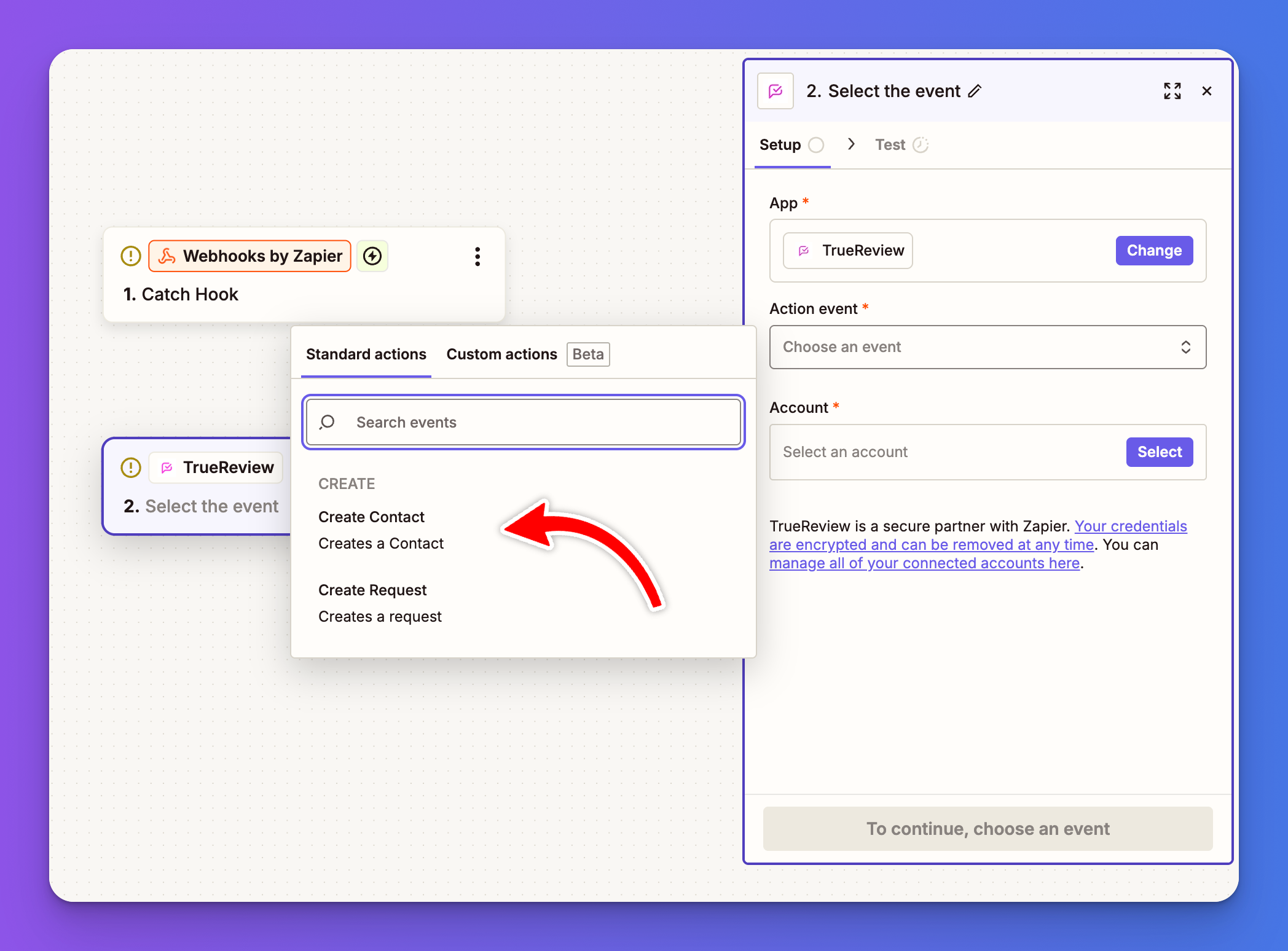
  1. Search for TrueReview and select it.
  1. Choose your Action event
    There are two actions in TrueReview:
  1. Create Request and Create Contact

    ​1. Create Requests sends the review request when the trigger is applied.
  1. 2. Create Contact adds the contact to your TrueReview contacts page, so you can manually select and send the request.
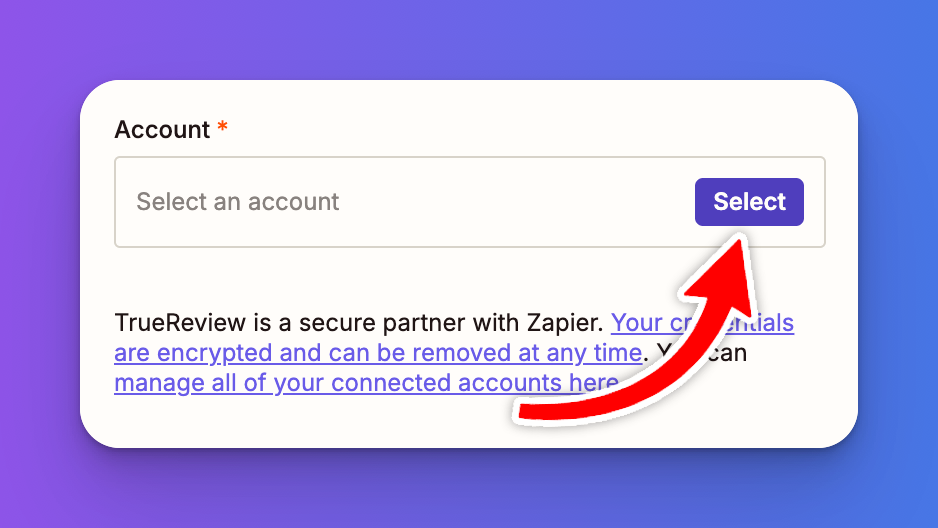
  1. Once you've selected the Action Event, connect your TrueReview account

  1. Sign into TrueReview and select the business associated with your account.
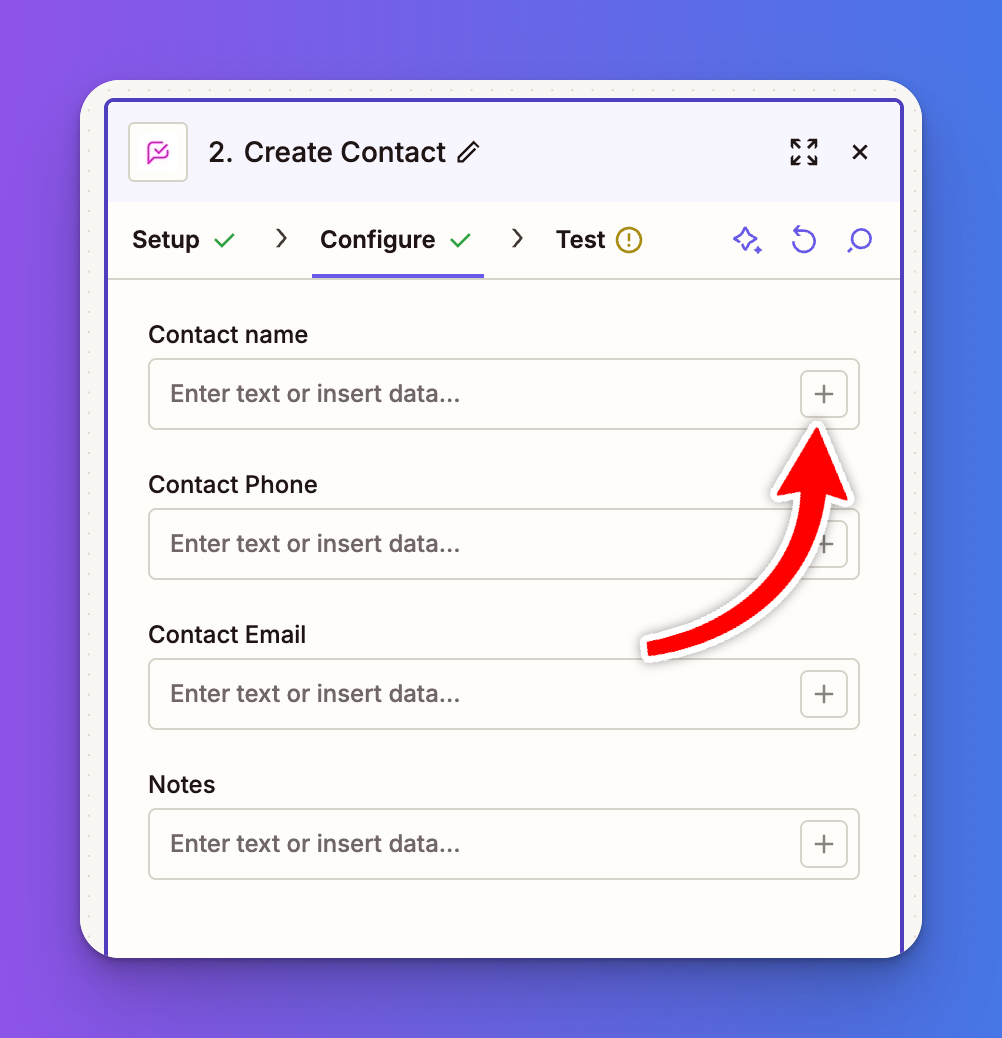
  1. Once signed in, connect the customer's information to TrueReview by clicking the plus icon next to each input field:

Once you're done, test your trigger and publish your Zap!

What Happens Next?

Here's your new automated workflow in action:

  1. Your technician completes a service call in FieldRoutes
  2. They mark the job as complete (or whatever trigger you configured)
  3. FieldRoutes instantly sends the customer data to Zapier via webhook
  4. Zapier receives the data and forwards it to TrueReview
  5. TrueReview automatically sends a personalized review request to the customer
  6. Reviews start flowing in without any manual effort

Pro Tips for Maximum Results

Timing Is Everything – Make sure your technicians are marking jobs complete promptly. The sooner the review request goes out after service, the better your response rate.

Train Your Team – Brief your technicians on the new system. Let them know that marking a job complete triggers a review request, so they should only do so when they're confident in the service quality.

Monitor Your Results – Check your TrueReview dashboard regularly. Look at response rates and the quality of feedback. If something seems off, you can always adjust your trigger conditions.

Personalize When Possible – Use those notes fields! Including details like "your quarterly termite inspection" or "your lawn fertilization service" in review requests makes them feel more personal and increases response rates.

Don't Spam – If you service the same customers regularly, make sure your TrueReview settings prevent sending too many requests in a short period. Nobody wants to be asked for a review after every single monthly service.

Troubleshooting Common Issues

Webhook Not Receiving Data?

  • Double-check that you copied the entire webhook URL from Zapier
  • Verify the request header is formatted correctly in FieldRoutes
  • Make sure you've actually triggered the condition by completing a test job

Wrong Customer Information Coming Through?

  • Review your field mapping in the TrueReview step
  • Check that the placeholders you selected in FieldRoutes match the data fields in TrueReview

Zap Not Firing Consistently?

  • Verify your trigger rule conditions in FieldRoutes are correct
  • Check Zapier's task history to see if the Zap is receiving data but failing somewhere in the process

The Bottom Line

Yes, this integration requires a bit more technical setup than a simple plug-and-play solution. But here's what you get in return: a completely automated review generation system that works 24/7, never forgets, and scales perfectly with your business.

In the competitive field service industry, companies with strong review profiles win more customers. Period. By automating this process, you're ensuring that every single completed job becomes an opportunity to strengthen your online reputation.

The setup might take 30-45 minutes, but the ROI in terms of review volume, online visibility, and new customer acquisition? That's measured in years.

Ready to stop chasing reviews and start collecting them automatically? Follow these steps, and watch your review count climb.

1,746% increase in Google reviews

See what Classic Bakery did to go from 130 to 2,400+ Google reviews and counting.

Watch Free Demo

More articles you might like

View more articles